
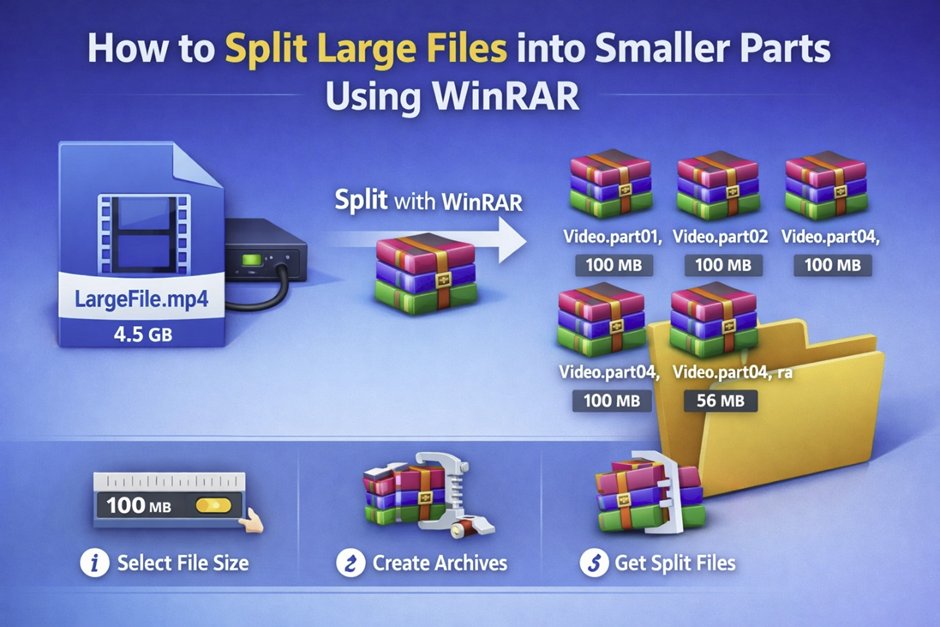
How to Split Large Files into Smaller Parts Using WinRAR
Main reasons for splitting files
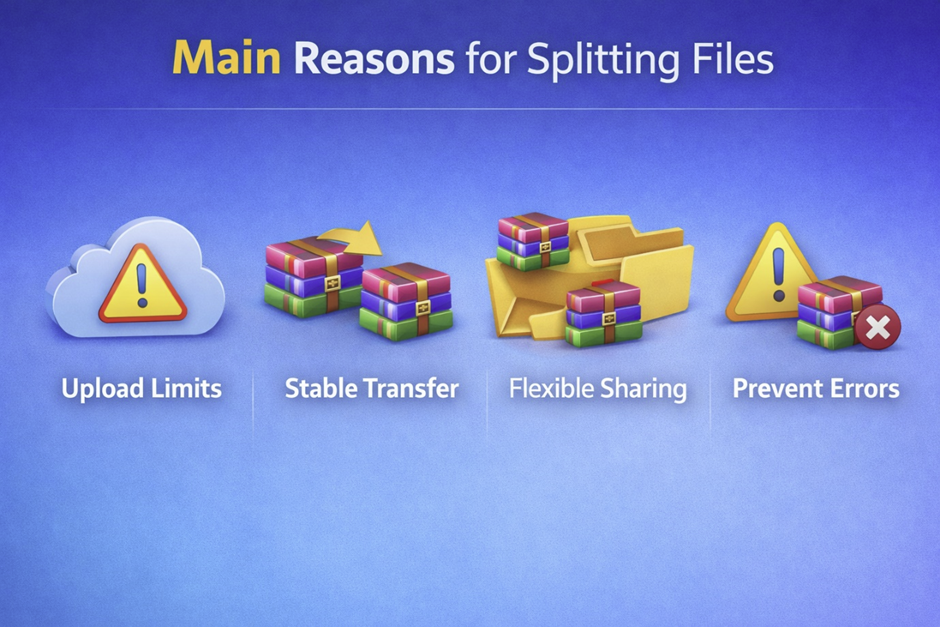
Main reasons for splitting large files explained:
1. Faster & Safer Transfers
- Large files take longer to upload and download, especially on cloud platforms.
- If something fails → you restart from zero
- Split files → resume from the failed part only
2. File Size Limits
Many platforms don’t allow big files:
- Email (~25MB)
- Hosting limits
- Older file systems (e.g., 4GB limit)
Splitting helps bypass these restrictions and makes it easier to upload files in parts.
3. Data Protection
- One corrupted large file can be caused by a virus or trojan attack
- Split files = only one part affected
Better for backups and archives
4. Better Performance
- Smaller chunks use less RAM and system resources
- Faster processing (compression/extraction)
- More stable on low-end systems
5. Easier Sharing
- Upload parts separately using services like Google and Microsoft platforms [Google] [Microsoft]….
- Share across multiple platforms
- Users can download in pieces
6. Parallel Processing
- Multiple parts can be processed at the same time in programming workflows [programming]….
- Used in:
- Cloud systems
- Torrents
- Big data workflows
8. Real Use Cases
- Website backups
- Large video files
- Software downloads
- Cloud storage uploads
WinRAR is one of the fastest and most powerful archivers with strong compression capabilities.
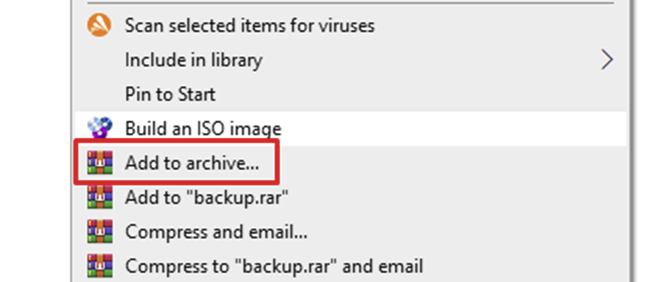
To do this, simply select the required files or folder and click “Add to archive."
The archive options window will appear.
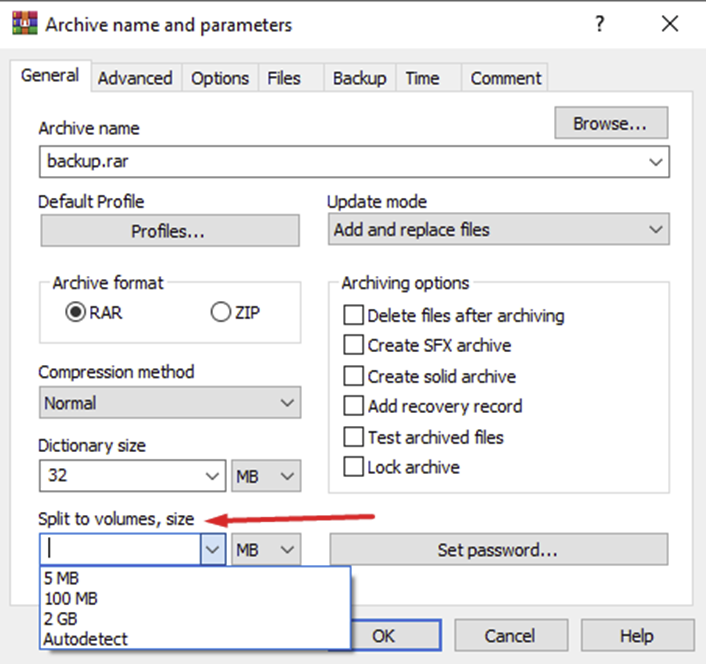
WinRAR allows you to create archives that are split into multiple parts. These are called multi-volume archives, and each individual part is known as a volume. This feature is especially useful for storing large amounts of data on removable drives or sending files via email.
WinRAR supports both RAR and ZIP formats for multi-volume archives. In the case of ZIP, these are commonly referred to as split ZIP files.
RAR volumes follow a naming format such as:
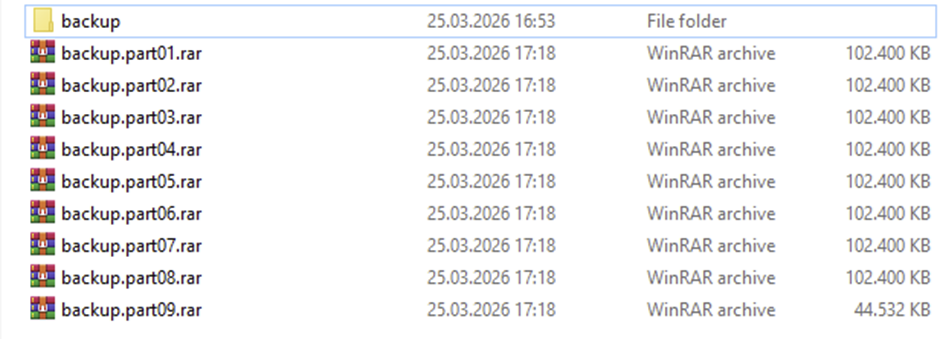
filename.part01.rar, filename.part02.rar, and so on, where the number indicates the sequence of the volume.
Older versions of WinRAR used a different naming system, where the first file had a .rar extension, followed by .r00, .r01, etc. While modern versions no longer create archives in this format, they can still extract them.
RAR volumes can also be created as solid archives or self-extracting archives (SFX). In the case of self-extracting archives, the first volume typically has an .exe extension instead of .rar.
To extract a multi-volume RAR archive, you must begin with the first volume. If the files are stored on a hard drive or other non-removable storage, all volumes should be placed in the same folder before extraction.
ZIP volumes use a different naming pattern, such as:
filename.zip, filename.z01, filename.z02, etc. When working with ZIP archives, always start with the .zip file.
Unlike RAR, ZIP volumes cannot be self-extracting. Additionally, all ZIP parts must be available in the same folder during both creation and extraction. This means you cannot process ZIP volumes directly from separate removable disks—you need to gather them first.
ZIP archives also contain a central directory, which stores file information. WinRAR supports only those split ZIP archives where this directory is fully located in the last volume.
It is important to note that once a multi-volume archive is created, you cannot modify it. Files cannot be added, updated, or deleted—you must create a new archive instead.
In newer versions (starting from 3.40), WinRAR stores the volume number internally. This can be viewed in the “Show information" section and can help restore the correct order if file names are changed or lost.
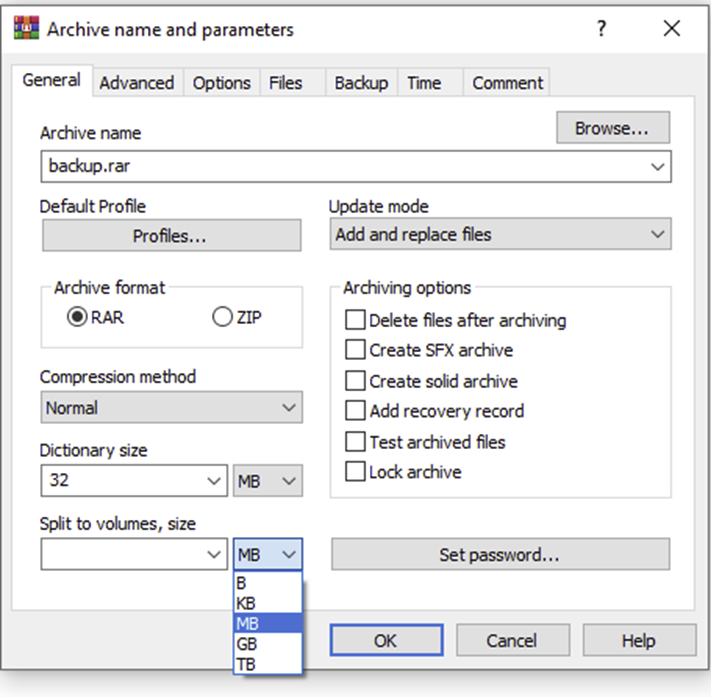
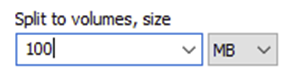
For this example, we selected a 100 MB split size for the archive.
Sometimes we need to upload files to file-sharing services such as Dropbox, Google Drive, or OneDrive, and these platforms often have file size upload limits. In such cases, splitting large files into smaller parts allows you to upload them without exceeding these restrictions. It also makes the upload process more stable, reducing the risk of failure during transfer. Additionally, smaller file parts can be uploaded or shared separately, giving more flexibility when distributing large data.
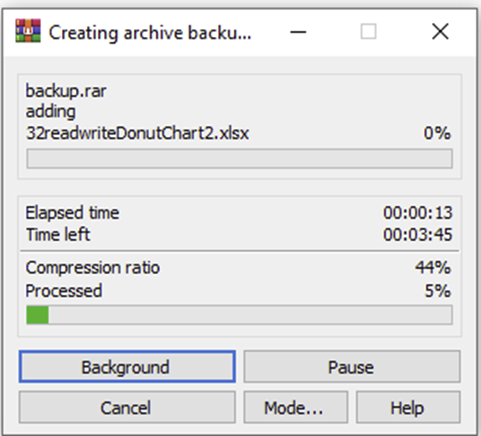
Depending on the compression method, the process takes different amounts of time.
Compression Method
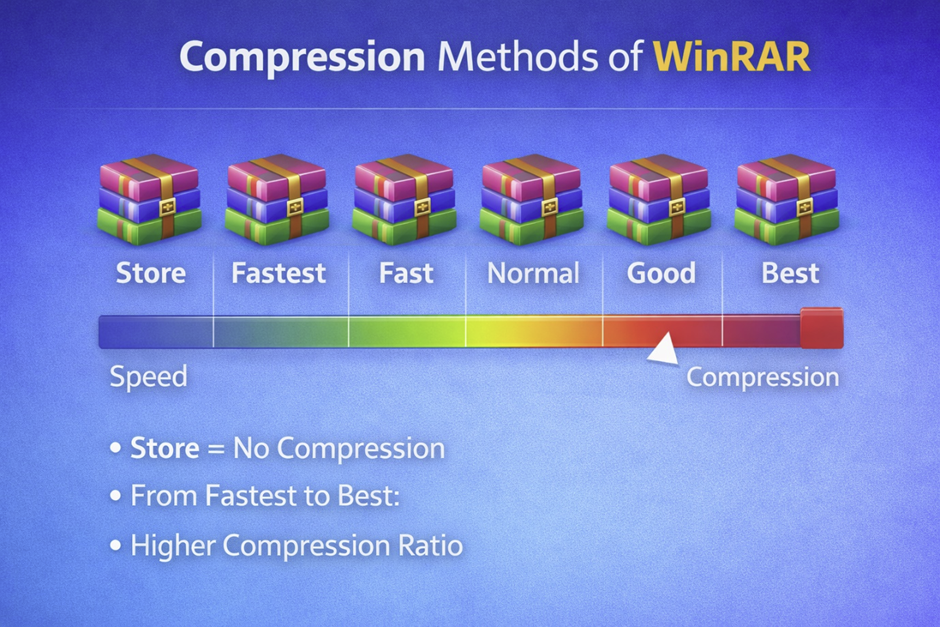
WinRAR provides several compression methods that allow you to balance speed and compression efficiency depending on your needs. You can choose between: Store, Fastest, Fast, Normal, Good, and Best.
- Store
This method does not compress files at all. It simply packages them into an archive, making it the fastest option. It is useful when compression is unnecessary, such as when files are already compressed (e.g., videos, images, or ZIP files). - Fastest
Provides very quick compression with minimal reduction in file size. It is ideal when speed is more important than saving storage space. - Fast
Offers a slightly better compression ratio than “Fastest" while still maintaining good speed. Suitable for everyday use when you want a balance but still prioritize performance. - Normal
This is the default setting in most cases. It provides a balanced combination of compression speed and file size reduction, making it a reliable choice for general use. - Good
Delivers higher compression than “Normal" but requires more processing time. It is useful when you want to reduce file size further without significantly slowing down the process. - Best
Provides the highest level of compression, resulting in the smallest possible archive size. However, it takes the longest time and uses more system resources. This option is ideal for archiving large files when maximum space saving is important.
As a result, we get files compressed and split to 100 mb files.
Rejoining split archive files
How it works:
- When you split a file, WinRAR creates multiple parts (e.g., .part1.rar, .part2.rar, etc.).
- Each part contains a portion of the original data.
- When you start extraction from the first volume, WinRAR:
- Reads data sequentially from all parts
- Automatically combines them in memory
- Recreates the original file during extraction
Important rules:
- All parts must be in the same folder
- File names must not be changed
- You must start extraction from the first file (usually .part1.rar or .rar)
- If one part is missing → extraction will fail
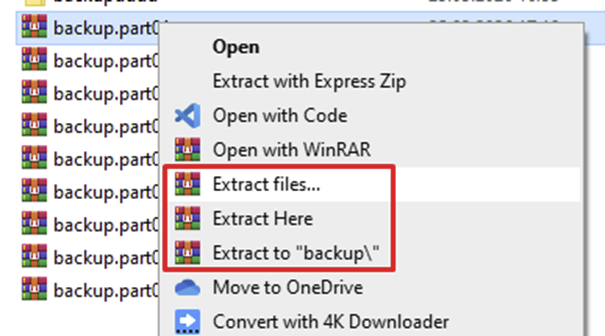
The program will extract the files to the same location.