CCleaner Complete Guide: Health Check, Custom Clean, Driver Updater & Performance Optimizer
After installing CCleaner on a Windows, the program opens with its main dashboard as the first view. This initial screen provides quick access to the most important cleaning and optimization tools used in system administration and PC maintenance. The dashboard helps users quickly manage system files, improve performance, and remove unnecessary data created by applications, browsers, and operating system processes.
Health Check
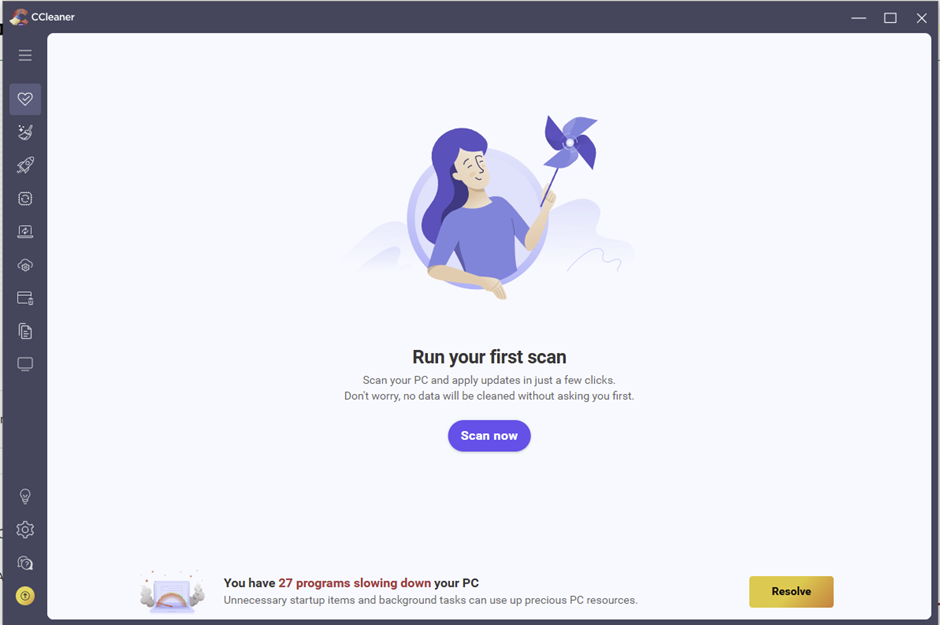
Health Check performs a quick scan of your computer to identify unnecessary files, trackers, and common performance issues. It automatically suggests safe fixes to improve system speed and privacy. This tool is designed for users who want fast and simple optimization without manual settings. It is especially useful for maintaining systems running Microsoft Windows, where temporary files and browser data accumulate quickly during daily use of the internet and cloud services.
Custom Clean
Custom Clean allows users to manually choose which files and data should be removed. It provides detailed control over cleaning temporary files, browser caches, cookies, and system logs created by different applications and web development tools. Advanced users and IT professionals prefer this option because it allows precise cleaning without removing important data used by programming environments, PDF tools, or system administration software.
Performance Optimizer
Performance Optimizer helps improve your computer’s speed by managing background applications and system processes. It detects programs that run automatically and puts unnecessary ones into sleep mode. This reduces system load on the CPU and RAM, allowing the processors to focus on active tasks. As a result, your Windows system can run faster and more efficiently, especially when multiple applications are running.
Driver Updater
Driver Updater scans your system to detect outdated or missing drivers. Keeping drivers updated can improve hardware performance, stability, and compatibility with modern operating systems such as Windows, Linux, or MacOS. Updated drivers are especially important for devices that rely on optimized performance from components such as the CPU, RAM, and graphics processors produced by companies like Intel, Samsung, or HP.
Software Updater
Software Updater checks installed programs and identifies those that have newer versions available. Updating software helps improve security, fix bugs, and add new features used in programming, web development, and system administration tasks. Many commonly used applications from companies like Google, Microsoft, Oracle, and IBM receive frequent updates to improve compatibility with modern systems.
Cloud Drive Cleaner
Cloud Drive Cleaner removes unnecessary files stored in connected cloud storage services. It helps free up cloud space by deleting duplicate or temporary files stored in services such as Google Drive and other cloud platforms. This can make cloud storage more organized and efficient, especially for users who store documents, PDF files, programming projects, or development backups in cloud environments.
Uninstaller
The Uninstaller tool allows you to remove unwanted programs from your computer. It displays a list of installed applications and lets you quickly uninstall them. Removing unused software helps free disk space and improve system performance. Many users remove outdated utilities, development tools, or programs related to Python programming, web development frameworks, or older operating systems that are no longer needed.
Duplicate Finder
Duplicate Finder scans your storage for files that appear more than once. These duplicate files can waste valuable disk space, especially when large PDF documents, programming files, or development backups are stored on multiple drives. The tool helps identify and remove them safely to free up storage on both internal disks and external devices such as USB drives or older storage formats like floppy disks archives.
Startup Manager
Startup Manager shows all programs that launch when your computer starts. You can disable unnecessary startup applications to reduce boot time and system load on the CPU and processors. Managing startup programs helps your Windows operating system start faster and run more efficiently, which is important for both everyday users and professionals working in system administration, programming, or Artificial Intelligence development environments.
Health Check
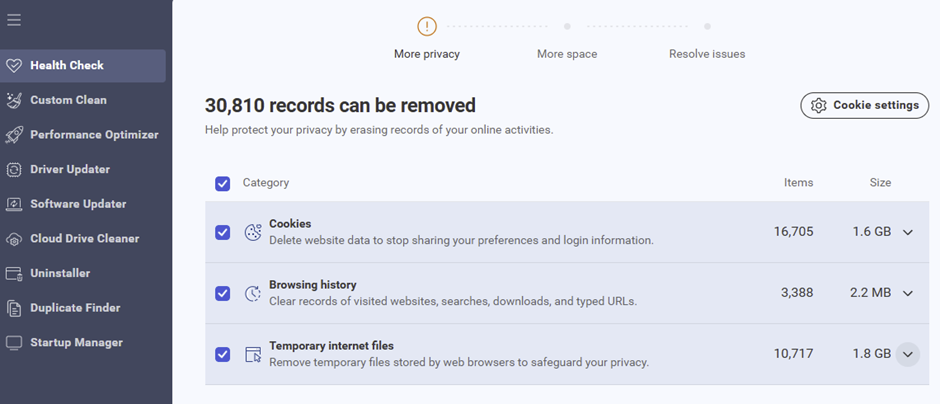
The Health Check feature in CCleaner provides a quick overview of files and records that can be removed to improve system privacy and free up storage space. The scan results show that 30,810 records can be removed, including cookies, browsing history, and temporary internet files created while using websites, cloud services, and applications such as Google Chrome.
These files are typically created while browsing websites, downloading documents such as PDF files, or working with online services. Over time, they accumulate and consume storage resources on the system.
The interface clearly lists each category along with the number of items and the amount of storage space they use. Users can review the detected data and choose which items to clean before proceeding. Removing these files helps protect browsing privacy, clear unnecessary data, and improve overall system performance on Windows systems powered by modern processors and RAM.
Custom Clean
Short description
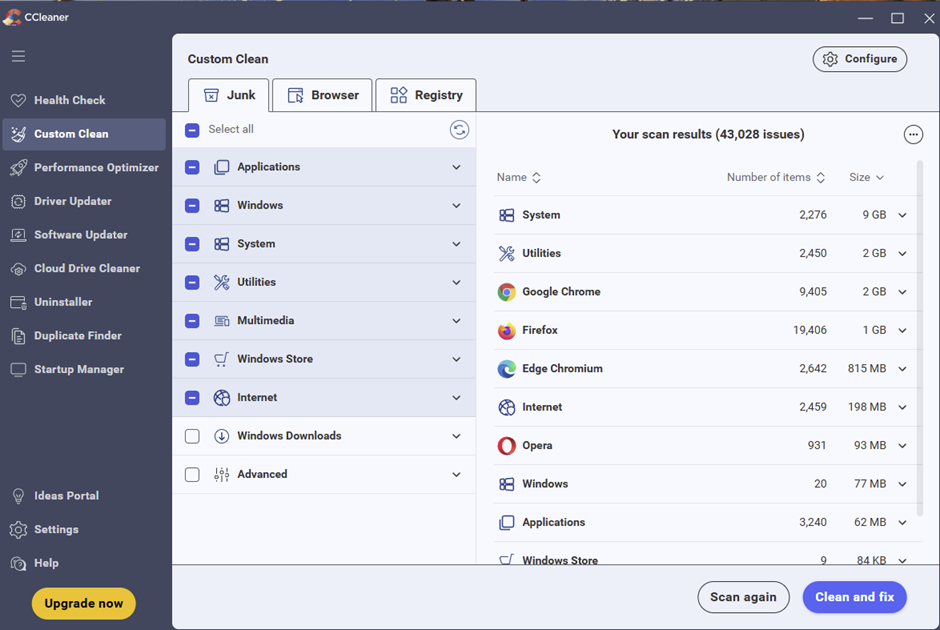
CCleaner Custom Clean shows a detailed list of files and data that can be removed from the system to free storage space and improve performance. In this screen, the program has detected 43,028 issues that can potentially be cleaned.
On the left panel, users can choose which categories to include in the cleaning process. These categories include:
• Applications – temporary files created by installed programs and development tools such as Python programming environments.
• Windows – system-related temporary files and logs generated by the Microsoft Windows operating system.
• System – operating system cache, leftover files, and performance data related to CPU and RAM usage.
• Utilities – temporary data created by utility software used for system administration or programming.
• Multimedia – cached media files stored during video or audio playback.
• Windows Store – data generated by Microsoft Store applications.
• Internet – browser-related files created while using websites, cloud services, and web development tools.
• Windows Downloads – downloaded files stored in the downloads folder.
• Advanced – additional cleaning options for advanced users and IT administrators.
At the top, there are three main tabs that allow users to switch between different cleaning types:
• Junk – removes unnecessary files and temporary data.
• Browser – cleans browser-related data such as cache, cookies, and history created while browsing websites like Google services.
• Registry – scans and fixes invalid or outdated registry entries in the Windows operating system.
Performance Optimizer
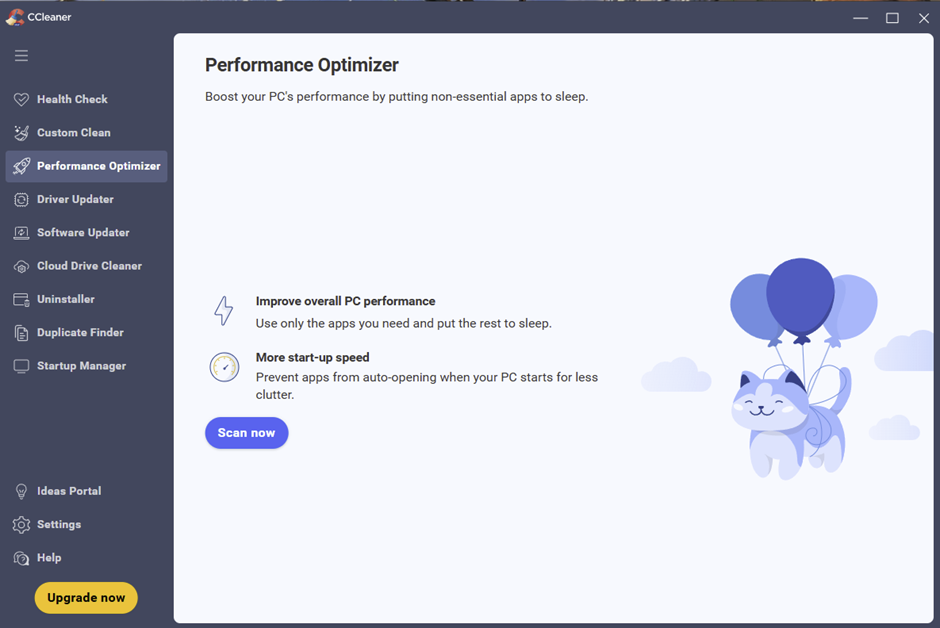
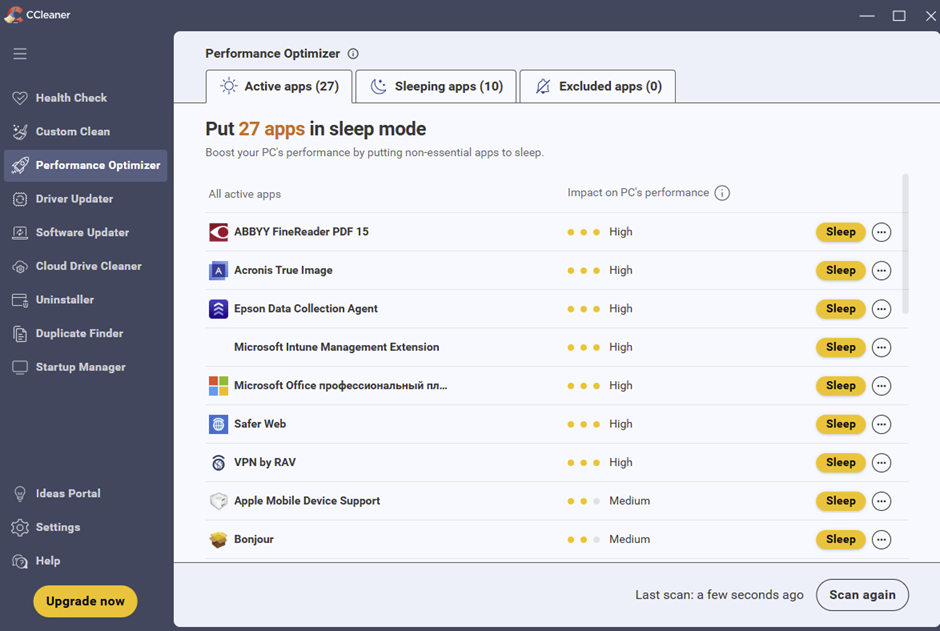
The Performance Optimizer feature helps improve your computer’s performance by managing background applications and system processes. It scans the system to detect programs that are running but not currently needed. These non-essential apps can be put into sleep mode to reduce system load and free up resources such as CPU power and RAM.
By limiting unnecessary background activity, the computer can run faster and more efficiently, especially on systems powered by modern Intel processors or similar hardware platforms. The tool also helps improve startup speed by preventing some applications from automatically launching when Windows starts.
This feature is particularly useful for users who work with demanding tasks such as programming, web development, or Artificial Intelligence applications, where efficient resource usage is important for maintaining system performance.
Driver Updater
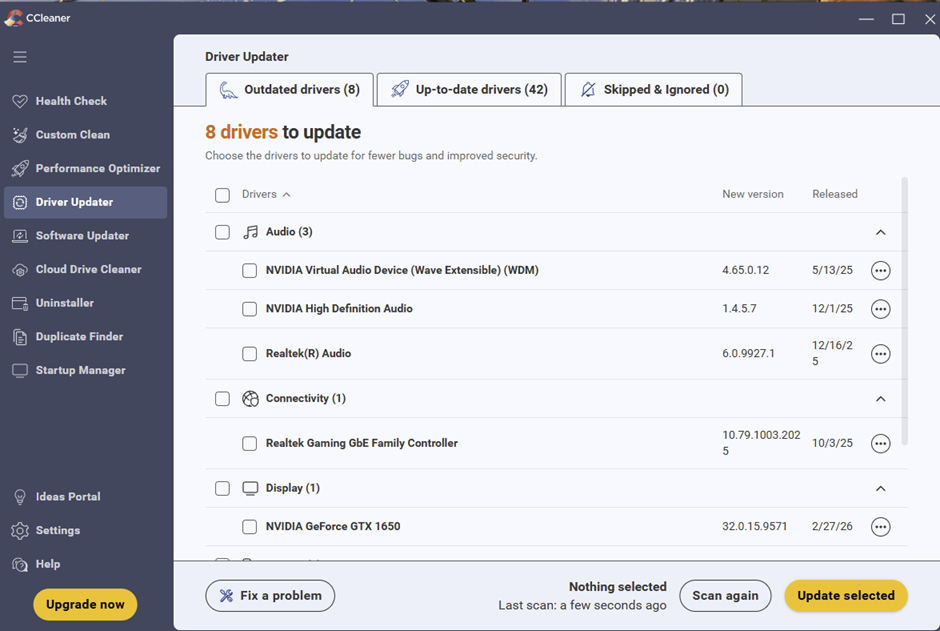
The Driver Updater section in CCleaner helps keep device drivers updated to ensure better system stability and performance. Keeping drivers current is an important part of system administration, especially on computers running Microsoft Windows.
The scan results indicate that 8 drivers need to be updated, while 42 drivers are already up to date. Outdated drivers can cause performance problems, hardware issues, or compatibility errors with modern hardware components such as CPU processors, RAM modules, graphics cards, and network adapters.
The list is organized by device categories such as Audio, Connectivity, and Display. Each driver entry shows the device name, the new version number, and the release date so users can review updates before installing them.
Examples include audio drivers from NVIDIA and Realtek, a network driver for the Realtek Gaming GbE Family Controller, and a display driver for the NVIDIA GeForce GTX 1650 graphics processor.
Users can select specific drivers to update or run another scan to check for new updates. Regular driver updates help improve compatibility with software platforms such as Windows, Linux, or MacOS, while ensuring hardware devices operate efficiently.
This example is taken from our PC system.
Software Updater
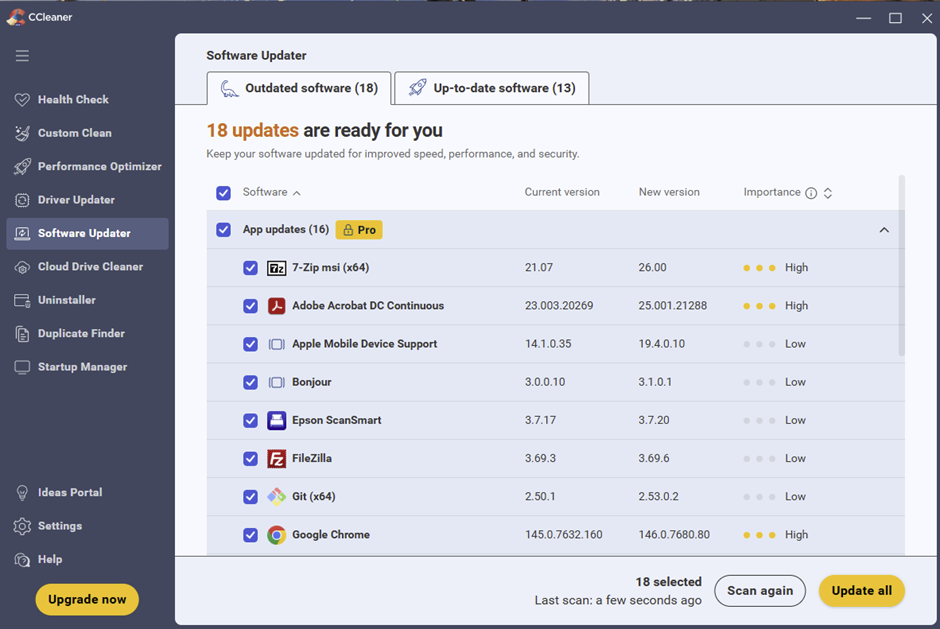
This screen displays the Software Updater feature of CCleaner, which helps users keep installed applications up to date. Keeping software updated is important for improving performance, fixing bugs, and maintaining strong system security.
The scan results show that 18 software updates are available, while 13 programs are already up to date. Many modern applications used for programming, PDF editing, system administration, and web development receive regular updates to improve compatibility with operating systems like Windows, Linux, and MacOS.
The list shows each application along with its current version, available new version, and update importance level. Some of the detected updates include programs such as 7-Zip, Adobe Acrobat DC, FileZilla, Git, and Google Chrome.
Each update is marked with an importance level such as High or Low, helping users decide which updates should be installed first. Software from companies like Google, Microsoft, IBM, and Oracle frequently introduces improvements related to performance, security, and cloud integration.
Users can select individual applications or update all selected software at once. The Scan again option allows checking for newly available updates.
Keeping software updated helps ensure better compatibility, improved security, and smoother system operation across modern computing environments.
Cloud Drive Cleaner
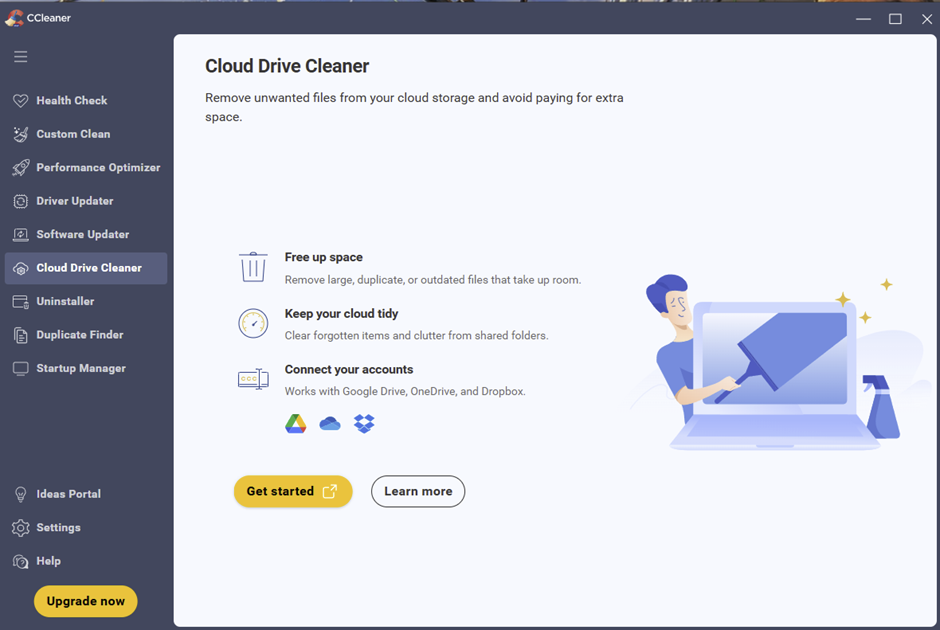
The Cloud Drive Cleaner feature in CCleaner helps users remove unnecessary files stored in cloud storage services. Many users store documents, PDF files, programming projects, and development backups in cloud platforms, which can quickly accumulate duplicate or outdated files.
This tool can detect large, duplicate, or temporary files that take up valuable storage space. By cleaning these files, users can free up space and keep their cloud storage environments better organized.
The tool also helps remove forgotten files and clutter from shared folders used in web development projects or collaborative programming environments.
It supports popular cloud services such as Google Drive, Microsoft OneDrive, and Dropbox, making it easier to manage files stored across different cloud platforms.
Uninstaller
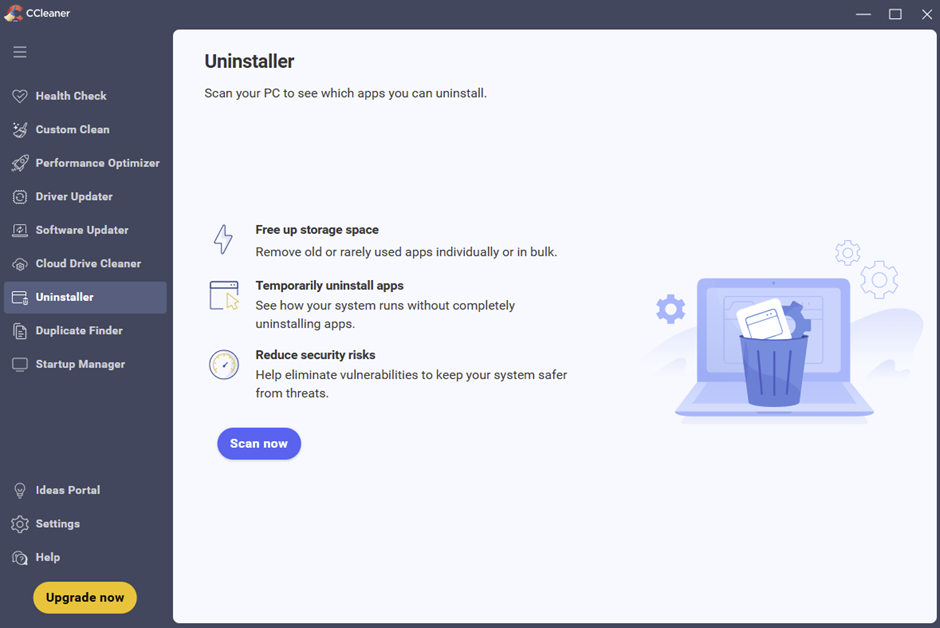
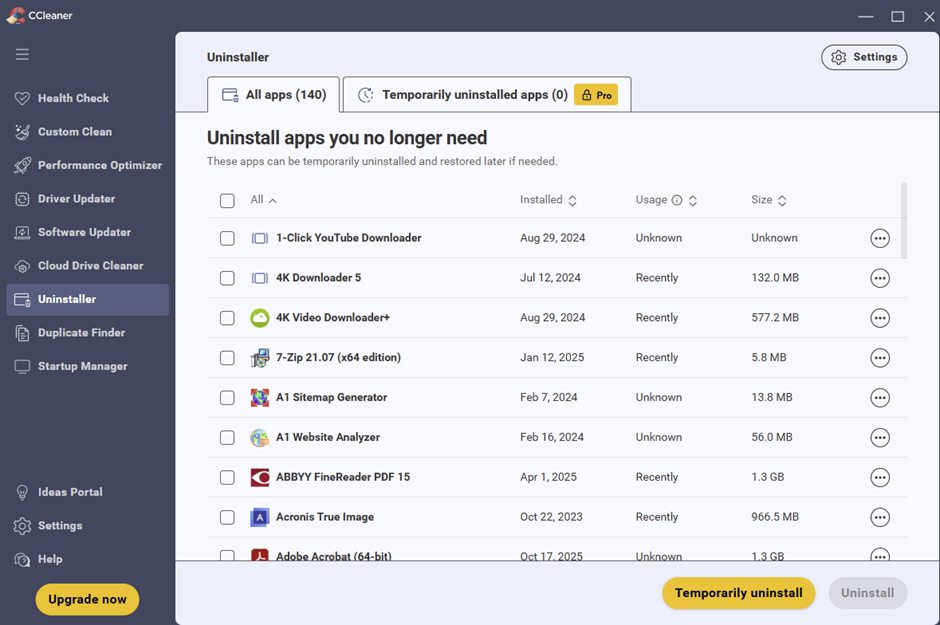
The Uninstaller feature in CCleaner allows users to manage and remove programs that are no longer needed. This section displays a complete list of installed applications, showing details such as the installation date, usage status, and program size.
By reviewing this information, users can easily identify unused or large applications that may be consuming valuable disk space and system resources like CPU processing power and RAM memory.
The tool provides options to permanently uninstall programs or temporarily uninstall them, allowing the application to be restored later if necessary. Examples of listed programs include 7-Zip, Acronis True Image, and Adobe Acrobat, which are commonly used for file compression, system backups, and PDF management.
Removing unnecessary software helps free disk space, improve system organization, and maintain better overall performance on Windows-based systems and enterprise environments used for system administration.
Duplicate Finder
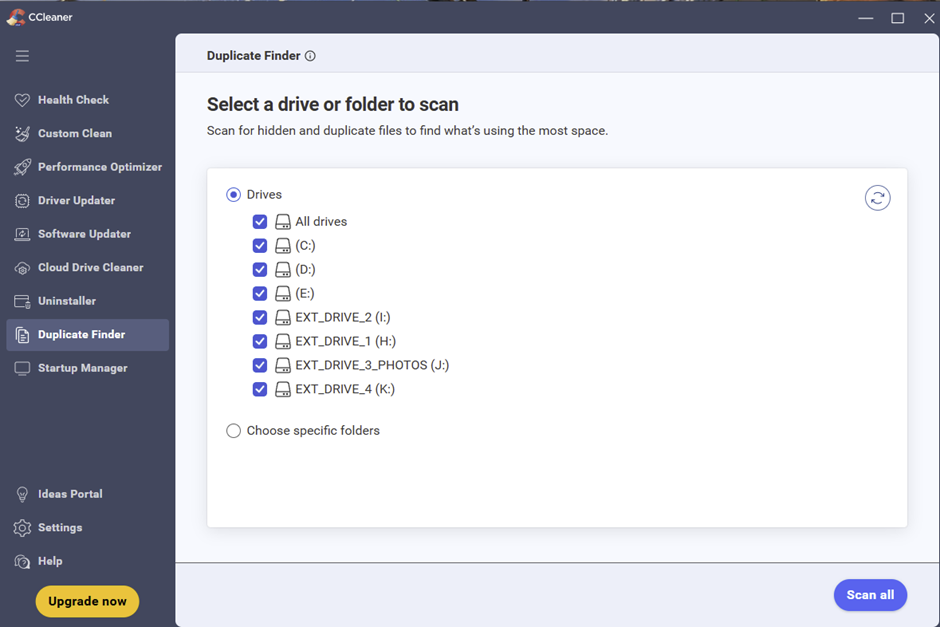
The Duplicate Finder feature in CCleaner helps users locate duplicate and hidden files that may be wasting valuable storage space. Duplicate files often accumulate when users store multiple copies of documents, programming files, PDF reports, or development backups.
This tool allows users to select specific drives or folders to scan for identical files stored in multiple locations. By detecting duplicates, users can identify unnecessary copies and remove them safely to free up disk space.
In this section, users can choose to scan all drives or individual drives, including internal storage and external devices such as USB drives.
The interface also provides an option to select specific folders if users want to limit the scan to certain locations. After choosing the desired drives or folders, the Scan all button starts the scanning process.
This feature helps organize files, reduce clutter, and optimize storage usage on the computer.
Startup Manager
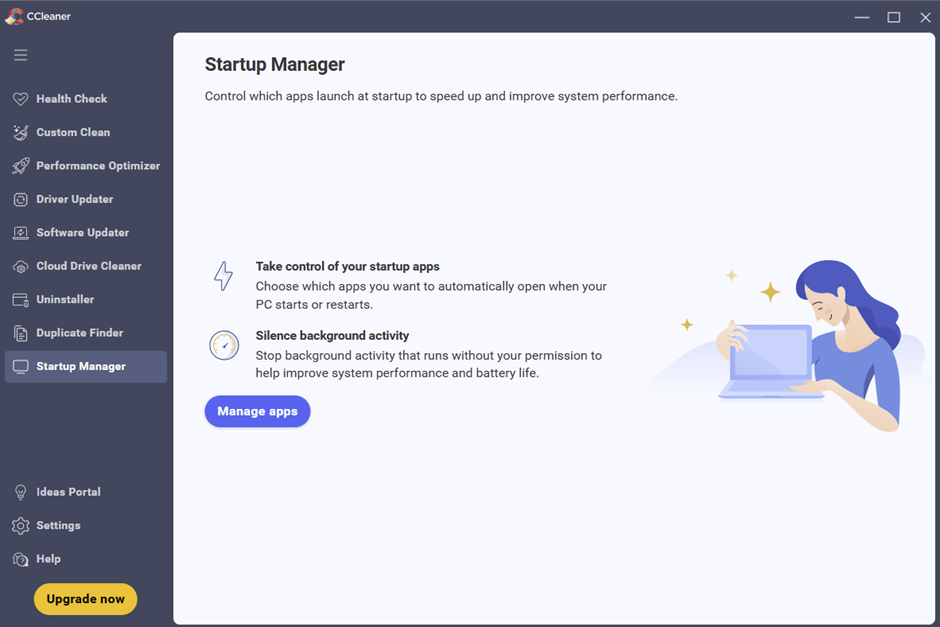
The Startup Manager feature in CCleaner allows users to control which programs automatically start when Windows boots. This section lists startup applications along with details such as the program name, publisher, file path, and startup status.
By reviewing this list, users can enable or disable programs that run during system startup. Managing startup programs is important because too many startup applications can slow down the system and increase load on the CPU, RAM, and processors.
The tool also includes additional tabs for Scheduled Tasks and Windows Services, giving users more control over background processes that may affect system performance.
Disabling unnecessary startup programs can help reduce boot time and improve overall system speed. Examples of startup applications shown include software from companies such as Adobe, Seiko Epson Corporation, and Gen Digital.
Efficient startup management is especially useful for professionals working in programming, Artificial Intelligence development, system administration, and web development environments, where system performance and stability are essential.