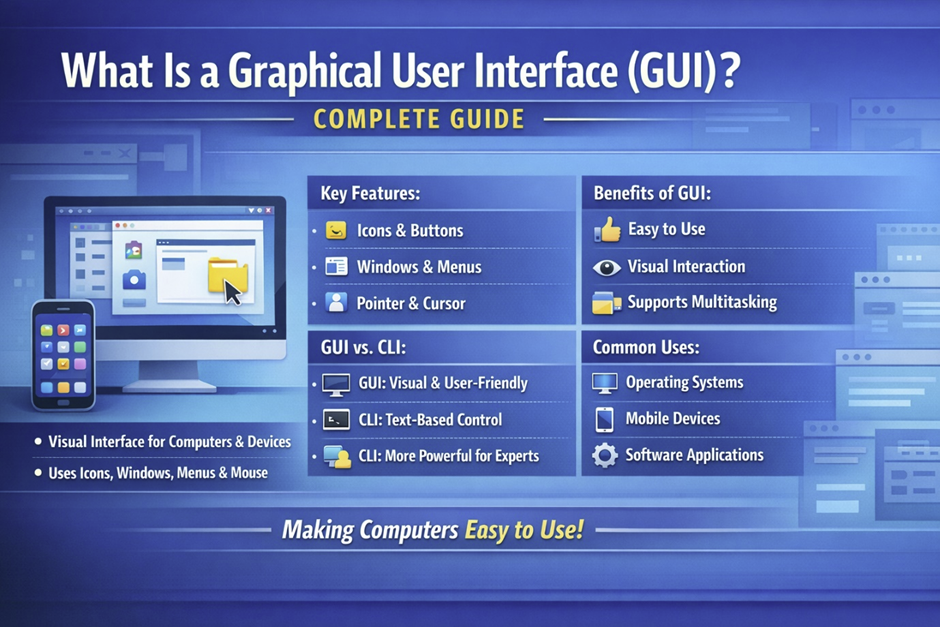
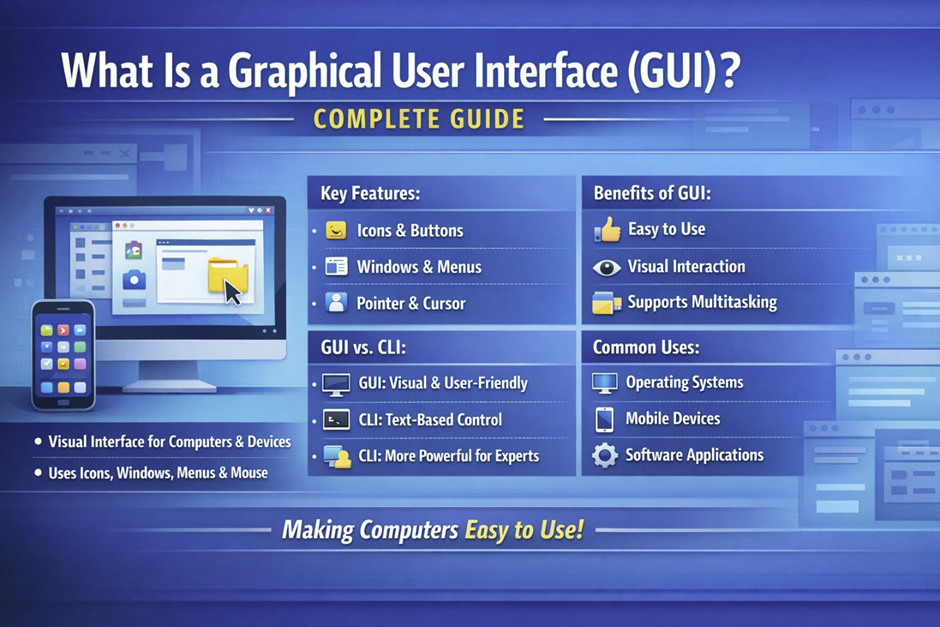
What Is a Graphical User Interface (GUI)? Complete Guide. PART 1
Fundamentals, History, and Core Concepts
Introduction to Graphical User Interfaces
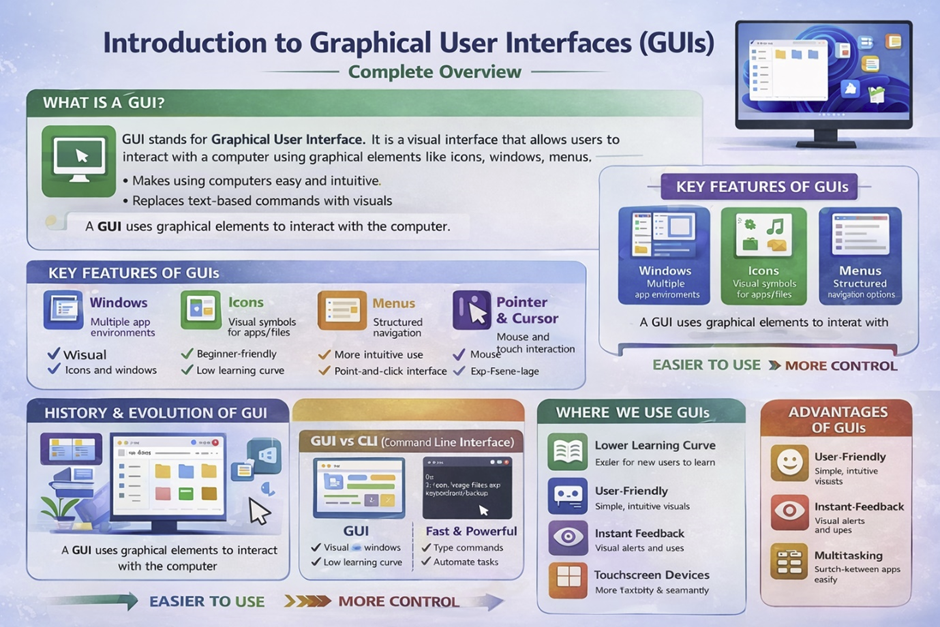
A Graphical User Interface (GUI) is one of the most important innovations in modern computing, transforming how humans interact with machines. Before GUIs became popular, computers relied heavily on text-based commands, requiring users to memorize complex instructions and syntax. This changed dramatically in the 1970s at Xerox PARC, located in California, USA, where early GUI concepts were first developed. Later, companies like Apple and Microsoft refined these ideas, making computers accessible to everyday users around the world. Today, GUIs are present in nearly every device—from desktops and laptops to smartphones and even smart TVs. Whether you are browsing the web, editing a document, or managing files, you are constantly interacting with a GUI. The rise of companies such as Google, Samsung, and HP has further expanded GUI usage across multiple platforms. In modern environments like web development, GUIs are essential for creating intuitive and user-friendly digital experiences.
Definition of GUI
A Graphical User Interface (GUI) is a type of user interface that allows users to interact with electronic devices using visual elements instead of text commands. These visual elements include windows, icons, buttons, menus, and pointers, all designed to simplify interaction. Unlike traditional command-line systems, where users must type precise instructions, a GUI enables users to perform tasks through clicking, tapping, or dragging actions. This shift began gaining traction in 1984 when Apple Macintosh introduced a user-friendly interface that revolutionized personal computing. Later, Microsoft Windows expanded GUI adoption globally, making it a standard for operating systems. GUIs rely on system resources such as CPU, ram , and graphics rendering to display elements smoothly on the screen. The development of modern GUI systems also involves advanced programming techniques and frameworks that manage user interactions efficiently. Even tasks like opening a PDF file or managing files stored on USB drives are made simple through GUI-based operations. Overall, GUIs reduce complexity and make computing more intuitive for users of all skill levels.
Why GUIs Matter in Modern Computing
Graphical User Interfaces play a crucial role in making technology accessible and efficient for a wide range of users. One of the biggest advantages of GUIs is that they eliminate the need for deep technical knowledge, allowing beginners to interact with systems without understanding complex commands. This was especially important during the rise of personal computers in the 1990s, when companies like IBM and Microsoft brought computing into homes and offices worldwide. GUIs provide visual feedback, enabling users to quickly understand actions such as opening files, installing applications, or managing large files. In areas like system administration, GUIs simplify tasks that would otherwise require advanced command-line expertise. Additionally, GUIs enhance productivity by allowing multitasking through multiple windows and applications. Everyday devices such as Android smartphones and MacOS computers rely heavily on GUI design to deliver seamless user experiences. Even advanced technologies like Artificial Intelligence now use GUIs to present complex data in a user-friendly way. From browsing the internet to managing data in the cloud [cloud], GUIs have become an essential bridge between humans and digital systems.
GUI vs CLI (Command Line Interface)
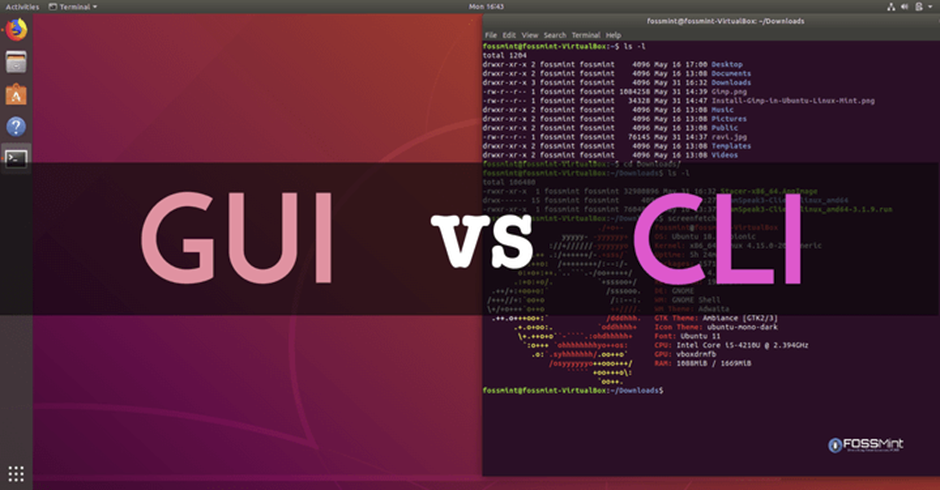
The comparison between Graphical User Interfaces (GUI) and Command Line Interfaces (CLI) represents one of the most important contrasts in computing history. In the early days of computers during the 1960s and 1970s, most systems relied entirely on text-based interfaces, requiring users to type commands manually. This approach was widely used in institutions like MIT, USA, where early computing research took place.
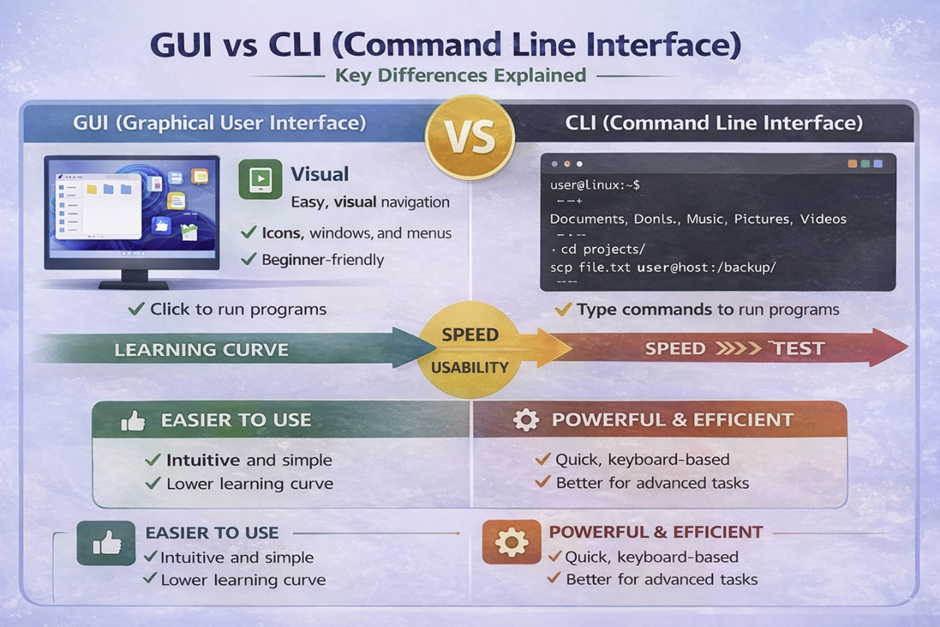
As technology evolved, companies such as Microsoft, IBM, and later Apple introduced GUI systems that replaced complex commands with visual elements. Today, both GUI and CLI coexist, each serving different purposes depending on the task and user expertise. While GUIs dominate consumer devices like Android smartphones and MacOS computers, CLI remains essential in professional environments such as system administration and server management. Many developers working in Python or backend systems still rely heavily on CLI tools for efficiency. Understanding the differences between these two interfaces helps users choose the right approach for their needs. In modern computing, the balance between usability and control continues to shape how GUIs and CLIs are used together.
What Is a Command Line Interface (CLI)
A Command Line Interface (CLI) is a text-based interface that allows users to interact with a computer system by typing commands into a terminal or console. This method was the primary way of operating computers before the widespread adoption of graphical interfaces. Early operating systems developed by companies like IBM required users to memorize specific commands to perform tasks such as file management or software execution. Even today, CLI environments are widely used in systems like Linux and developer tools provided by Microsoft. Unlike GUIs, which rely on visual elements, CLI depends entirely on text input and output, making it highly efficient for experienced users. Commands can be executed quickly, especially when dealing with tasks like managing large files or configuring servers. CLI also plays a critical role in advanced operations such as handling upload files processes on remote systems. Although it may seem difficult for beginners, CLI offers powerful control and flexibility that GUIs often cannot match. Its continued relevance in modern computing highlights its importance in both development and technical workflows.
Key Differences Between GUI and CLI
The key differences between GUI and CLI lie in how users interact with systems and the level of control they provide. GUIs use visual elements such as windows, icons, and menus, making them intuitive and easy to navigate, while CLI relies entirely on typed commands. This difference significantly impacts usability, as GUIs are generally preferred by beginners and non-technical users. In contrast, CLI offers faster execution for repetitive tasks, especially in environments like system administration and software deployment. Another major distinction is the learning curve, where GUIs require minimal training, whereas CLI demands memorization of commands and syntax. Historically, GUIs gained popularity after 1985 with the release of Microsoft Windows, which made computing accessible to the general public. On the other hand, CLI remained dominant in professional and server environments, particularly with systems like Linux. GUIs consume more system resources such as ram and graphical processing, while CLI is lightweight and efficient. Additionally, GUI environments are commonly used in web development, where visual design is critical, whereas CLI is preferred for backend operations. These differences make both interfaces valuable, depending on the context in which they are used.
Advantages of GUI Over CLI
Graphical User Interfaces offer several advantages that make them the preferred choice for most users today. One of the most significant benefits is ease of use, as GUIs allow users to interact with systems through simple actions like clicking and dragging. This accessibility became widely recognized after the introduction of GUI-based systems by Apple and later expanded by Microsoft in the 1990s. GUIs also provide visual feedback, helping users understand what is happening in real time, which is especially useful when managing files or applications. Another advantage is discoverability, where users can explore features without needing prior knowledge of commands. For example, opening a PDF document or scanning files using an antivirus program can be done easily through graphical menus. GUIs also enhance multitasking by allowing multiple windows to be open simultaneously. Devices from companies like Samsung, Sony, and Motorola rely heavily on GUI design to provide smooth user experiences. Furthermore, GUIs integrate well with modern technologies such as cloud services, making file access and sharing seamless. Overall, GUIs make computing more inclusive and user-friendly across all levels of expertise.
When CLI Is Still Better
Despite the widespread use of GUIs, Command Line Interfaces remain superior in certain scenarios, particularly for advanced users and technical professionals. One of the main advantages of CLI is its ability to automate repetitive tasks through scripts, which is essential in fields like programming and server management. Automation allows users to execute complex sequences of commands quickly and efficiently without manual intervention. CLI also provides deeper control over system operations, enabling users to customize and optimize performance beyond what GUIs typically allow. This level of control is especially important when working with hardware resources like processors or managing system-level configurations. In operating systems such as Linux, CLI tools are often preferred for their speed and reliability. Additionally, CLI environments are less resource-intensive, making them ideal for systems with limited CPU power or memory. Security is another factor, as CLI can be used to manage sensitive operations such as setting a password or monitoring potential threats like a trojan or virus . Even large organizations like Oracle rely on CLI tools for database and server management. While GUIs dominate everyday computing, CLI continues to play a critical role in professional and technical environments.
History and Evolution of GUI
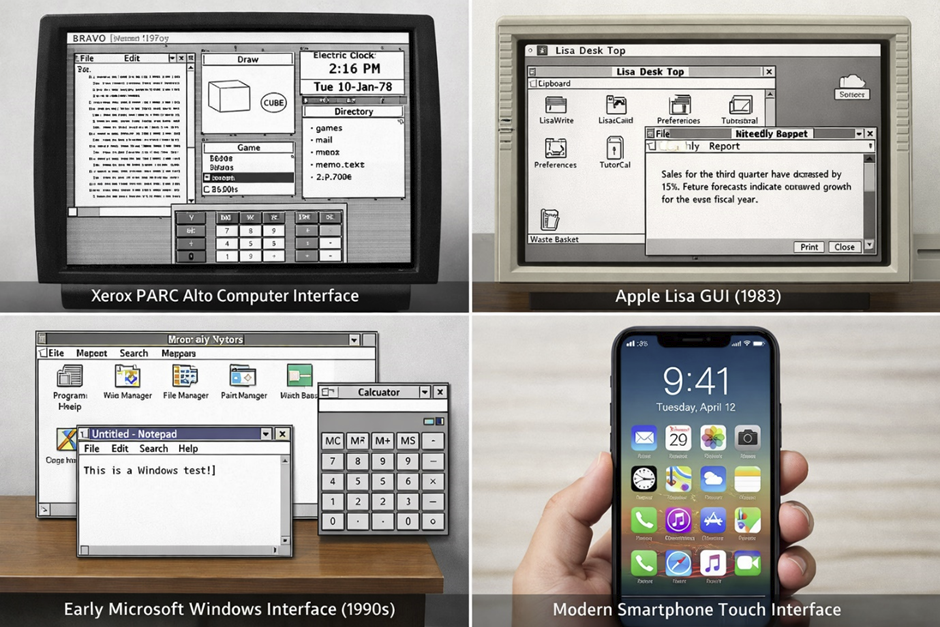
The history of Graphical User Interfaces (GUI) is a fascinating journey that reflects the broader evolution of computing technology. In the early days, computers were complex machines accessible only to scientists and engineers, requiring deep technical knowledge to operate. Over time, innovations transformed these systems into user-friendly platforms that anyone could use. A major turning point occurred in the 1970s at Xerox PARC, California, USA, where researchers developed the first GUI concepts that would later influence the entire industry. These ideas were eventually adopted and commercialized by companies like Apple and Microsoft, leading to the widespread use of GUI in personal computers. By the 1990s, GUI had become the standard interface for most operating systems, replacing text-based environments for everyday tasks. Today, GUI systems are deeply integrated into devices powered by companies such as Google, Samsung, and HP, enabling intuitive interaction across platforms. The evolution of GUI also reflects advancements in hardware like Intel-based systems and improved ram capabilities, which allowed smoother graphical rendering. From early experimental systems to modern touch interfaces, GUI continues to evolve alongside innovations in Artificial Intelligence and user experience design.
Early Computing Without GUI
Before the development of graphical interfaces, computers relied entirely on text-based input methods that were difficult for most people to use. In the 1940s and 1950s, early computers operated using punch cards, where users had to physically encode instructions on paper cards. These systems were widely used in institutions such as IBM, which played a major role in early computing advancements. Later, in the 1960s, terminals replaced punch cards, allowing users to input commands through keyboards and receive text-based output on screens. Despite this improvement, users still needed to memorize complex commands, making computing inaccessible to the general public. There were no icons, windows, or visual elements—only lines of text displayed on monochrome screens. Tasks such as managing files or running programs required precise syntax, leaving little room for error. Storage devices like floppy disks were commonly used during this era, but interacting with them required command-line knowledge. These limitations highlighted the need for a more intuitive system, ultimately leading to the development of GUI. The absence of visual interaction in early computing made it clear that a new approach was necessary to bring technology to a wider audience.
First GUI Systems
The first true graphical user interfaces were developed in the 1970s at Xerox PARC, California, USA, a research center that pioneered many modern computing concepts. One of the most significant innovations was the Xerox Alto computer, introduced in 1973, which featured windows, icons, and a mouse for navigation. This system was revolutionary because it allowed users to interact with a computer visually rather than through text commands. Although the Alto was not widely sold commercially, it demonstrated the potential of GUI technology and influenced future developments. Engineers and researchers at Xerox PARC created concepts such as overlapping windows and graphical file management, which are still used today. These innovations laid the foundation for modern operating systems and user interfaces. The Alto also showed how hardware improvements, including better processors, could support graphical environments. Despite its limited commercial success, the ideas developed at Xerox PARC inspired companies like Apple to bring GUI technology to the mass market. This period marked the beginning of a shift from technical computing to user-friendly design.
Rise of GUI in Personal Computers
The transition of GUI from research labs to personal computers began in the early 1980s, led by Apple under the leadership of Steve Jobs in California, USA. In 1983, Apple introduced the Apple Lisa, one of the first personal computers with a graphical interface. Although it was expensive and not widely adopted, it demonstrated the practical use of GUI in everyday computing. A year later, in 1984, Apple launched the Macintosh, which became a major success due to its user-friendly interface and innovative design. The Macintosh popularized the use of icons, menus, and a mouse, making computers accessible to non-technical users. These developments marked a turning point in computing history, shifting the focus from technical complexity to usability. During this time, GUI systems began to replace command-line interfaces in many applications. The rise of GUI also influenced industries such as web development [web development], where visual design became increasingly important. Companies like Sony and HP later adopted similar interface concepts in their devices, further expanding GUI usage. This era established GUI as a key component of personal computing.
Microsoft and GUI Expansion
The widespread adoption of GUI accelerated with the introduction of Microsoft Windows, developed by Bill Gates and his team in 1985. Unlike earlier systems, Windows was designed to run on a wide range of hardware, making GUI accessible to millions of users worldwide. Early versions of Windows were relatively simple, but they evolved rapidly throughout the 1990s, introducing features such as the Start menu and improved multitasking. This period also saw intense competition between Microsoft and Apple, which drove innovation in GUI design. Windows became the dominant operating system for personal computers, used by businesses, schools, and home users alike. The success of Windows was supported by partnerships with hardware manufacturers like Intel, enabling better performance and graphical capabilities. GUI-based systems made it easier to manage files, install applications, and interact with devices like USB drives. Over time, Windows integrated additional features such as built-in antivirus tools to enhance security. This expansion played a crucial role in making GUI the standard interface for modern computing. Today, Windows remains one of the most widely used GUI-based operating systems in the world.
Modern GUI Systems
Modern GUI systems have evolved far beyond their early desktop origins, now powering a wide range of devices and platforms. The introduction of smartphones in the late 2000s, led by companies like Google and manufacturers such as Samsung and Motorola, brought GUI to mobile environments. Operating systems like Android introduced touch-based interfaces, allowing users to interact through gestures such as tapping, swiping, and pinching. This shift eliminated the need for traditional input devices like keyboards and mice in many situations. Modern GUIs are also integrated with cloud technologies, enabling users to store and access data seamlessly through the cloud. Advances in hardware, including faster CPU performance and improved graphics capabilities, have made interfaces smoother and more responsive. Additionally, GUI systems now incorporate elements of Artificial Intelligence, providing personalized recommendations and automation features. Even complex tasks such as detecting a virus or managing a trojan threat can be handled through intuitive graphical interfaces. Platforms like Linux and MacOS continue to innovate, offering unique GUI experiences tailored to different user needs. As technology continues to evolve, GUI remains at the center of human-computer interaction, adapting to new devices and user expectations.
Core Elements of a GUI
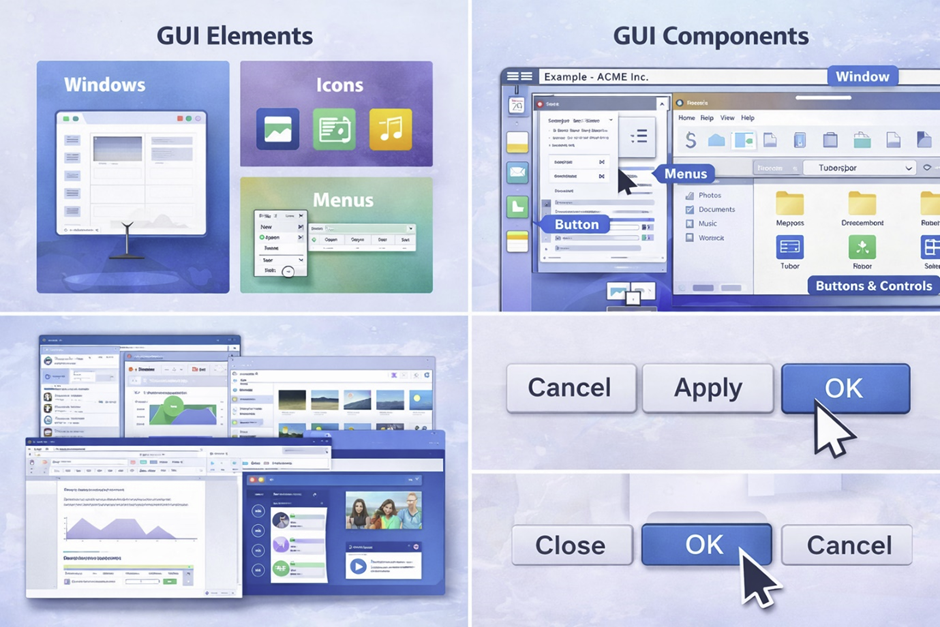
The core elements of a Graphical User Interface (GUI) form the foundation of how users interact with digital systems. These elements were first conceptualized in the 1970s at Xerox PARC, California, USA, and later refined by companies like Apple and Microsoft to create modern operating systems. Each component plays a specific role in making interactions intuitive, efficient, and visually understandable. Without these elements, users would still rely on text-based commands, which are less accessible for most people. Modern GUI systems, used in platforms such as Windows, Linux, and MacOS, depend heavily on these components to deliver smooth user experiences. Advances in hardware from companies like Intel and HP have enabled faster rendering of graphical elements, improving responsiveness. These elements also support complex tasks like managing files, opening a PDF , or running applications without requiring technical expertise. In areas such as web development , understanding GUI components is essential for building user-friendly interfaces. Together, these elements create a cohesive system that bridges human interaction and machine functionality.
Windows
Windows are one of the most fundamental components of any GUI, allowing users to work with multiple applications simultaneously. The concept of windows was first introduced in experimental systems at Xerox PARC during the 1970s, where overlapping screens enabled multitasking. This idea was later popularized by Microsoft Windows, which became a global standard in the 1990s. A window acts as a container for an application, displaying its content while keeping it separate from other running programs. Users can move, resize, minimize, or close windows, making it easier to manage multiple tasks at once. This feature is especially useful when working with large files or comparing documents side by side. Windows also help organize workflows, particularly in professional environments like system administration . Modern systems allow advanced window management, including snapping and virtual desktops. Devices from brands like Samsung and Sony extend this concept to mobile environments with split-screen functionality. Overall, windows provide a structured and efficient way to interact with multiple applications within a GUI.
Icons
Icons are visual symbols that represent files, applications, or system functions within a GUI, making navigation more intuitive. Instead of remembering file names or commands, users can recognize icons quickly through their design and imagery. This concept became widely popular with the release of the Apple Macintosh in 1984, which introduced user-friendly visual representations. Icons simplify tasks such as opening applications, accessing folders, or identifying file types like a PDF document. They also play a crucial role in mobile interfaces, where space is limited and visual clarity is essential. Modern operating systems like Android and MacOS rely heavily on icons for app navigation and system interaction. Designers often follow consistent visual standards to ensure icons are easily recognizable across platforms. In some cases, icons also indicate system status, such as warnings for a virus [virus] or alerts from an antivirus [antivirus] program. The use of icons reduces cognitive load, allowing users to perform actions quickly without reading text. As GUI design evolves, icons continue to play a vital role in enhancing usability and accessibility.
Menus
Menus are structured lists of options that allow users to navigate through applications and access features efficiently. They provide a clear hierarchy of commands, making it easier to locate specific functions without memorizing instructions. The concept of menus was refined in early GUI systems developed by Apple and later adopted by Microsoft Windows. Menus can appear in different forms, such as dropdown menus, context menus, or navigation bars. These structures help users perform tasks like opening files, saving documents, or adjusting settings. In professional environments like system administration [system administration], menus simplify complex operations by organizing them into logical categories. Modern applications also include dynamic menus that adapt based on user actions. For example, menus in cloud-based platforms allow users to manage files stored in the cloud [cloud] with ease. Menus are essential in both desktop and mobile interfaces, ensuring consistent navigation across devices. Their structured design helps users interact with systems efficiently and reduces the need for trial and error.
Buttons and Controls
Buttons and controls are interactive elements that trigger actions within a GUI, making them essential for user interaction. These elements include standard buttons, checkboxes, sliders, and input fields, each designed for a specific purpose. The use of buttons became widespread with the rise of GUI-based systems in the 1980s, particularly through products developed by Apple and Microsoft. Buttons allow users to perform actions such as submitting forms, starting applications, or confirming operations. Controls like sliders and toggles provide additional ways to adjust settings without typing commands. In modern applications, buttons are designed with visual feedback, such as color changes or animations, to indicate interaction. This is especially important in environments like web development , where user experience is a priority. Buttons also play a role in security-related actions, such as confirming a password entry or scanning for a trojan . Devices from companies like Motorola and Samsung incorporate touch-based controls, replacing physical buttons in many cases. Overall, buttons and controls make GUIs interactive and responsive, enabling users to execute tasks بسهولة and efficiently.
Pointer and Cursor
The pointer and cursor are essential components that allow users to interact with GUI elements through precise movements. The concept of a pointer was introduced alongside the computer mouse at Xerox PARC in the 1970s, revolutionizing how users navigate digital environments. The pointer typically appears as an arrow or hand icon, indicating where actions will take place on the screen. The cursor, on the other hand, shows the position for text input, such as when typing in a document or form. These elements enable actions like clicking, dragging, and selecting, making interaction more intuitive than typing commands. In modern systems, pointers are used not only with a mouse but also with touchscreens and stylus devices. Operating systems like Windows, Linux, and MacOS have refined pointer behavior to improve accuracy and responsiveness. Advanced hardware, including high-performance CPU and graphics systems, ensures smooth pointer movement without lag. In mobile environments, touch gestures act as a replacement for traditional pointers, maintaining the same functionality. The pointer and cursor remain fundamental to GUI design, providing a direct connection between user actions and system responses.
Types of Graphical User Interfaces
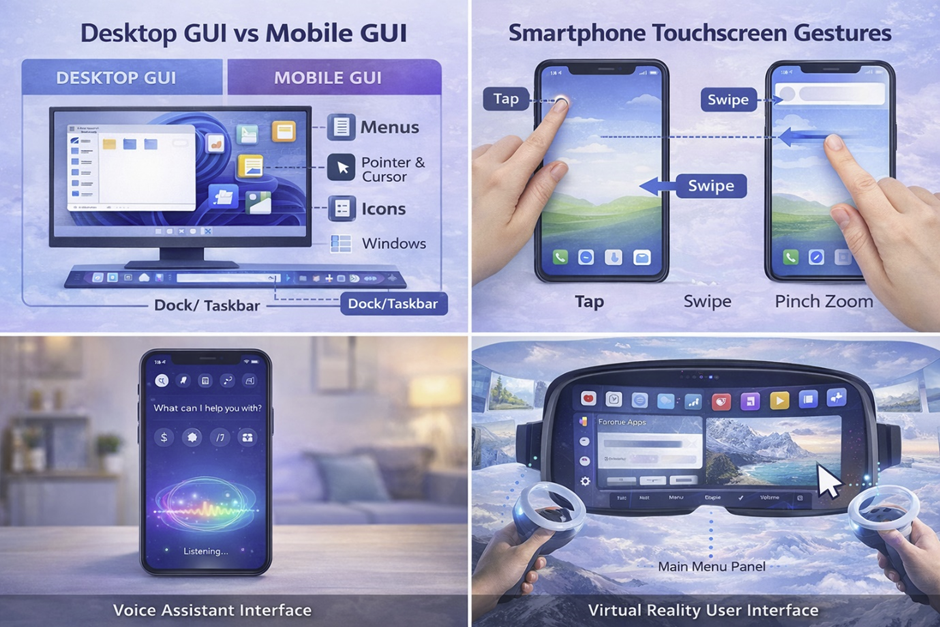
Graphical User Interfaces come in different types, each designed to match specific devices, technologies, and user needs. Since their early development in the 1970s at Xerox PARC, California, USA, GUI systems have evolved far beyond desktop computers. Today, interfaces are tailored for a wide range of environments, including mobile devices, touchscreens, and immersive technologies. Companies like Microsoft, Apple, and Google have played a major role in shaping these variations, adapting GUI design to new hardware capabilities. The diversity of GUI types reflects advancements in computing power, including improvements in processors and ram , which enable smoother and more responsive interfaces. Modern users interact with GUIs not only through traditional devices but also via voice commands and gestures. These interfaces are essential in fields like web development , where adaptability across devices is critical. As technology continues to advance, GUI types are becoming more interactive, intelligent, and immersive. Understanding these types helps users and developers choose the right interface for different applications and environments.
Desktop GUI
Desktop GUIs are the traditional form of graphical interfaces used on personal computers and laptops. These interfaces became widely popular in the 1980s and 1990s with operating systems like Windows developed by Microsoft and MacOS created by Apple. Desktop GUIs are designed for use with a keyboard and mouse, providing precise control over applications and system functions. They include features such as windows, taskbars, icons, and file explorers, allowing users to manage multiple tasks efficiently. Desktop environments are widely used in professional settings, including offices, education, and system administration . They are particularly useful for handling complex tasks like editing documents, managing large files , or running specialized software. Hardware manufacturers such as HP and systems powered by Intel processors have helped improve desktop GUI performance over time. These interfaces also support external devices like USB drives , making file transfer and storage management simple. Despite the rise of mobile devices, desktop GUIs remain essential for productivity and advanced computing tasks.
Mobile GUI
Mobile GUIs are designed specifically for smartphones and tablets, offering a more compact and touch-friendly interface. This type of GUI gained popularity in the late 2000s, driven by operating systems like Android developed by Google. Mobile interfaces prioritize simplicity, using large icons and intuitive layouts to accommodate smaller screens. Companies such as Samsung, Motorola, and Sony have played a major role in advancing mobile GUI design through their devices. Unlike desktop systems, mobile GUIs rely heavily on touch interactions instead of a mouse and keyboard. They also integrate features like notifications, quick settings, and app-based navigation. Mobile GUIs are optimized for performance, ensuring smooth operation even with limited hardware resources such as CPU and memory. These interfaces are widely used for everyday tasks, including browsing, messaging, and accessing cloud services. Security features, such as detecting a virus or managing an antivirus , are also integrated into mobile GUIs. Overall, mobile GUIs have transformed how users interact with technology on a daily basis.
Touchscreen Interfaces
Touchscreen interfaces represent a major evolution in GUI design, allowing users to interact directly with the screen using gestures. This technology became mainstream in the 2010s, especially with the widespread adoption of smartphones and tablets. Instead of using a mouse or keyboard, users can tap, swipe, pinch, and drag elements on the screen. These gestures make interaction more natural and intuitive, reducing the learning curve for new users. Touchscreen GUIs are used in a variety of devices, including smartphones, tablets, kiosks, and even laptops. Companies like Samsung and Apple have been at the forefront of touchscreen innovation. These interfaces are particularly useful for tasks like viewing images, navigating apps, or editing documents. In modern applications, touchscreen GUIs are also used for entering a password securely through virtual keyboards. The performance of touchscreen interfaces depends on responsive hardware, including advanced processors . As technology continues to evolve, touchscreen GUIs are becoming more precise and responsive, enhancing the overall user experience.
Voice-Assisted GUI
Voice-assisted GUIs combine traditional graphical interfaces with voice recognition technology, creating a hybrid interaction model. This type of interface has become increasingly popular with the rise of smart assistants developed by companies like Google and other tech leaders. Instead of relying solely on visual elements, users can issue voice commands to perform tasks such as searching information or controlling applications. Voice-assisted GUIs are commonly used in smartphones, smart speakers, and home automation systems. They improve accessibility, especially for users who may have difficulty using touch or keyboard inputs. These systems often rely on advanced technologies like Artificial Intelligence to understand and respond to user commands. Voice interfaces can also assist in tasks like managing files, sending messages, or even handling upload files operations. In professional environments, voice-assisted GUIs are being explored to simplify workflows and improve efficiency. Despite their advantages, they are usually combined with visual interfaces to provide a complete user experience. This hybrid approach represents a significant step forward in human-computer interaction.
3D and Immersive Interfaces
3D and immersive interfaces represent the next generation of GUI technology, offering interactive experiences in virtual and augmented environments. These interfaces are used in technologies such as Virtual Reality (VR) and Augmented Reality (AR), which gained significant attention in the 2010s. Companies like Google and hardware manufacturers have invested heavily in developing immersive systems. Unlike traditional GUIs, these interfaces place users inside a digital environment where they can interact with objects in three dimensions. This approach is widely used in gaming, education, and simulation training. Immersive GUIs require powerful hardware, including advanced CPU [CPU] and graphics systems, to deliver smooth experiences. They also rely on sensors and motion tracking to detect user movements and gestures. In some cases, these interfaces are integrated with programming tools for developing interactive applications. Immersive GUIs are also being explored for professional use, such as design visualization and remote collaboration. As technology continues to evolve, 3D interfaces are expected to play a major role in the future of computing, redefining how users interact with digital environments.
How GUI Works (Behind the Scenes)
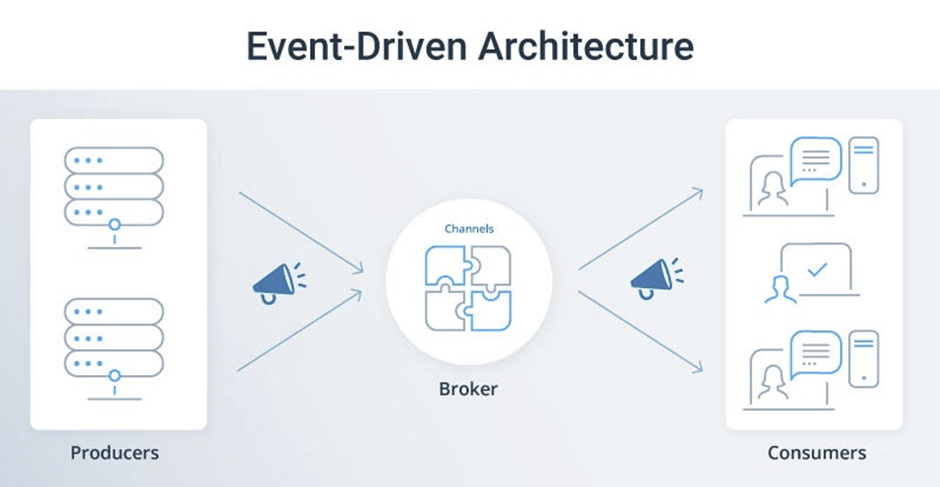
While Graphical User Interfaces appear simple on the surface, they rely on complex processes working behind the scenes to deliver smooth and responsive interactions. The foundations of modern GUI systems were developed in the 1970s at Xerox PARC, California, USA, and have since evolved into highly optimized architectures used in operating systems like Windows, Linux, and MacOS. Every click, movement, or interaction triggers a sequence of events handled by both software and hardware components. These systems depend on efficient coordination between the operating system, rendering engines, and hardware such as CPU and memory. Companies like Microsoft, Apple, and Google have invested heavily in optimizing these processes to ensure fast and stable performance. Behind every graphical element lies a combination of programming logic and system-level operations. Modern GUI systems also integrate advanced technologies like Artificial Intelligence to enhance responsiveness and personalization. Understanding how GUI works behind the scenes is essential for developers involved in web development and software engineering. This knowledge reveals how visual simplicity is powered by complex internal mechanisms.
Event-Driven Programming
Event-driven programming is the core concept that enables GUI systems to respond to user interactions. Instead of running in a fixed sequence, GUI applications wait for events such as mouse clicks, key presses, or touch gestures. When a user performs an action, like clicking a button, the system detects the event and triggers a specific response. This approach became widely used in GUI systems during the 1980s, particularly with the rise of Microsoft Windows. Event-driven models allow applications to remain responsive and interactive, even when multiple processes are running simultaneously. Developers use event listeners and handlers to define how the system should react to each action. This method is essential for creating dynamic interfaces in modern applications and is widely used in languages like Python . Event-driven programming also plays a role in handling background processes, such as monitoring for a virus or responding to alerts from an antivirus system. It enables efficient multitasking without overwhelming system resources. Overall, this model is fundamental to making GUIs interactive and user-friendly.
Rendering Engines
Rendering engines are responsible for drawing and displaying graphical elements on the screen, making them a critical part of any GUI system. These engines take instructions from software and convert them into visual output that users can see and interact with. Early GUI systems had limited rendering capabilities due to hardware constraints, but modern systems have advanced significantly. Companies like Intel have developed powerful graphics technologies that improve rendering performance. Rendering engines manage everything from simple icons to complex animations and transitions. They ensure that visual elements appear smoothly and respond instantly to user actions. In modern environments, rendering is also used in browsers and applications built for web development . Efficient rendering is essential when working with large files , ensuring that interfaces do not lag or freeze. These engines rely heavily on system resources, including ram , to maintain performance. As GUI systems become more complex, rendering engines continue to evolve to support higher resolutions and more detailed graphics.
Operating System Role
The operating system plays a central role in managing GUI functionality by coordinating hardware and software resources. Operating systems like Windows, Linux, and MacOS act as intermediaries between the user interface and the underlying hardware. They handle tasks such as memory allocation, process management, and device communication. This ensures that GUI applications run smoothly without conflicts or performance issues. The operating system also manages input devices like keyboards, mice, and touchscreens, translating user actions into system commands. Companies like Microsoft and Apple have continuously improved their operating systems to enhance GUI performance and usability. The OS is also responsible for managing storage devices such as USB drives , allowing users to access and organize files easily. Security is another important aspect, as the operating system helps detect threats like a trojan [trojan] and ensures safe system operations. In enterprise environments, operating systems support advanced tasks related to system administration [system administration]. Overall, the OS is the backbone that enables GUIs to function effectively.
GUI Frameworks
GUI frameworks are collections of libraries and tools that help developers create graphical interfaces more efficiently. These frameworks provide pre-built components such as buttons, menus, and windows, reducing the need to build everything from scratch. The concept of GUI frameworks became popular in the 1990s as software development grew more complex. Companies like Oracle and other technology providers have contributed to the development of robust frameworks. These tools simplify the process of building applications by handling common tasks like event management and rendering. Frameworks are widely used in both desktop and mobile application development, as well as in web development . They allow developers to focus on functionality rather than low-level implementation details. Some frameworks also support cross-platform development, enabling applications to run on multiple operating systems. GUI frameworks are essential for creating modern applications that can handle tasks like managing files in the cloud [cloud] or processing user input securely, such as entering a password . As technology evolves, frameworks continue to improve, making GUI development faster and more efficient.
Advantages of Graphical User Interfaces
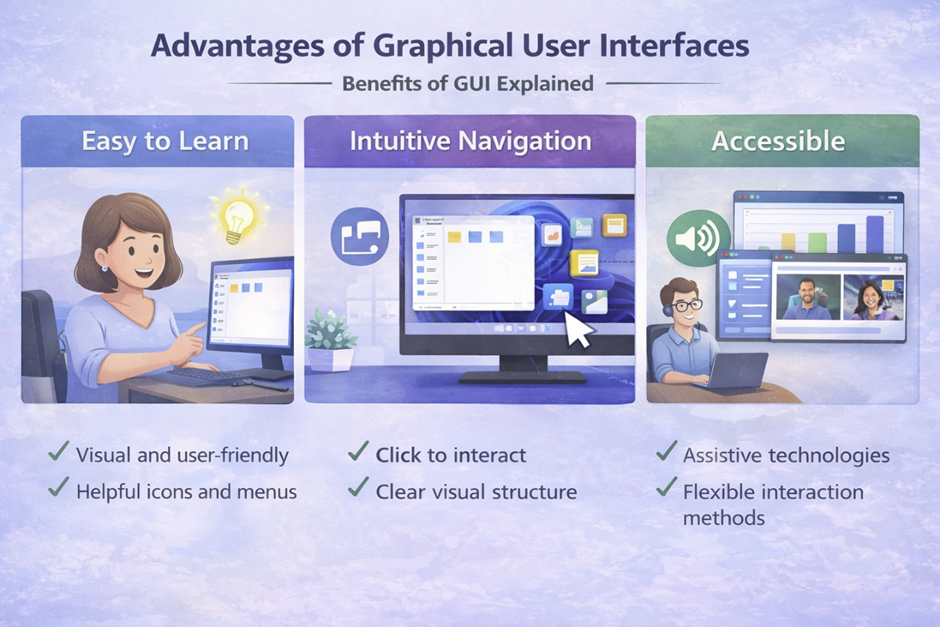
Graphical User Interfaces offer numerous advantages that have made them the dominant method of interaction in modern computing. Since their early development in the 1970s at Xerox PARC, California, USA, GUIs have evolved into highly intuitive systems used across all digital devices. Companies like Microsoft, Apple, and Google have continuously improved GUI design to make technology accessible to a global audience. One of the biggest strengths of GUIs is their ability to simplify complex operations through visual elements, reducing the need for technical expertise. These interfaces allow users to interact with systems using icons, buttons, and menus instead of memorizing commands. GUIs also support efficient workflows, enabling users to perform multiple tasks simultaneously without confusion. Modern systems powered by Intel hardware and optimized ram [ram] usage ensure smooth performance even with complex graphical environments. GUIs are widely used in areas like web development , where user experience is critical. From opening a PDF to managing files in the cloud , GUIs make everyday computing tasks faster and more accessible. These advantages have made GUIs essential in both personal and professional environments.
User-Friendly Design
One of the most important advantages of GUIs is their user-friendly design, which allows people with little or no technical knowledge to use computers effectively. This approach became popular in the 1980s with the introduction of systems like the Apple Macintosh, which focused on simplicity and usability. GUI design relies on visual elements such as icons, buttons, and menus, making it easier for users to understand how to interact with a system. Instead of typing commands, users can perform actions through simple clicks or taps. This design philosophy has been adopted by companies like Microsoft and Google, ensuring consistency across devices and platforms. User-friendly GUIs are especially important for beginners, as they reduce confusion and make learning more intuitive. In modern applications, GUIs guide users through tasks such as installing software or managing upload files processes. Even security-related tasks, like scanning for a virus using an antivirus , are simplified through graphical interfaces. The focus on usability has made GUIs a key factor in the widespread adoption of technology worldwide. Overall, user-friendly design ensures that computing is accessible to everyone.
Reduced Learning Curve
Another major advantage of GUIs is the reduced learning curve compared to text-based interfaces. In earlier computing systems, users had to memorize commands and understand complex syntax, which made technology difficult to learn. With the introduction of GUI systems by Apple and later expanded by Microsoft in the 1990s, this barrier was significantly lowered. GUIs use familiar visual elements, allowing users to learn by exploration rather than memorization. This makes it easier for new users to start using computers without formal training. The reduced learning curve is particularly beneficial in educational environments and workplaces, where quick adoption is important. In fields like programming , GUIs help beginners understand concepts before moving to more advanced tools. They also simplify tasks such as managing large files or organizing data. Devices running Android or MacOS rely heavily on intuitive GUI design to ensure ease of use. By reducing complexity, GUIs enable users to focus on productivity rather than technical details. This advantage has played a crucial role in making computers a part of everyday life.
Visual Feedback
Visual feedback is another key advantage of GUIs, providing users with immediate responses to their actions. When a user clicks a button or opens a file, the interface responds visually, confirming that the action has been recognized. This concept was introduced in early GUI systems developed at Xerox PARC and later refined by companies like Microsoft. Visual feedback helps users understand what is happening in real time, reducing errors and improving confidence. For example, progress bars show the status of tasks such as copying files or processing data. This is especially useful when working with tasks like file transfers using USB drives . Visual cues also play an important role in security, such as alerts indicating a potential trojan threat. Modern GUIs use animations and highlights to enhance feedback and make interactions more engaging. These features rely on efficient use of system resources, including CPU , to ensure smooth performance. Visual feedback is essential for creating intuitive and responsive interfaces. It helps bridge the gap between user actions and system responses.
Multitasking Capabilities
Multitasking is one of the most powerful advantages of GUIs, allowing users to work with multiple applications at the same time. This capability became widely popular with the introduction of Microsoft Windows in the 1990s, which allowed users to open and manage several windows simultaneously. GUIs make it easy to switch between tasks, improving productivity and efficiency. Users can run applications side by side, such as editing documents while browsing the internet. This is particularly useful in professional environments like system administration [system administration], where multiple tools are often needed. Modern systems also support advanced multitasking features, such as virtual desktops and split-screen modes. Devices from companies like Samsung and HP have extended these capabilities to mobile and hybrid systems. Multitasking GUIs rely on efficient resource management, including ram [ram], to ensure smooth operation. They also support cloud-based workflows, enabling users to access data from the cloud [cloud] while working on local applications. Overall, multitasking capabilities make GUIs a powerful tool for managing complex workflows and increasing productivity.
Disadvantages of GUI
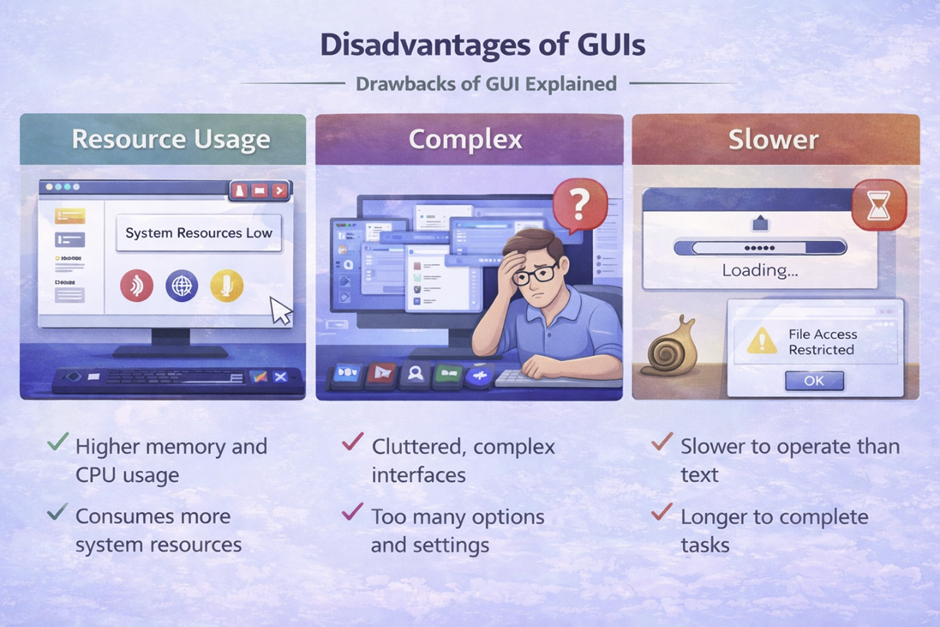
While Graphical User Interfaces offer many benefits, they also come with certain disadvantages that can impact performance and flexibility. These limitations became noticeable as GUI systems grew more complex, especially after widespread adoption in the 1990s with operating systems like Microsoft Windows. Unlike text-based systems, GUIs require significant system resources to render visual elements and maintain responsiveness. This increased demand can affect performance, particularly on older or low-powered hardware. Companies such as Intel and HP have worked to improve hardware capabilities, but resource consumption remains a key challenge. In professional environments like system administration [system administration], some users prefer alternatives due to efficiency concerns. GUIs can also introduce delays when performing repetitive or advanced operations compared to command-based systems. Despite their ease of use, they may not provide the same level of control as text interfaces. Even modern systems like Linux and MacOS face similar trade-offs when balancing usability and performance. Understanding these disadvantages helps users choose the right interface based on their needs and technical requirements.
Higher Resource Usage
One of the main disadvantages of GUIs is their higher resource usage compared to command-line interfaces. GUIs require additional processing power to display graphics, animations, and visual effects, which can strain system resources. This issue became more prominent in the 1990s as graphical operating systems like Microsoft Windows introduced more advanced visual features. Running a GUI involves continuous interaction between the system and hardware components such as the CPU and memory. Systems with limited ram may experience slowdowns, especially when multiple applications are open. GUIs also consume storage space due to graphical assets and interface components. This can be a concern when managing large files or running resource-intensive applications. Even simple tasks may require more processing compared to their CLI equivalents. Hardware manufacturers like Intel have improved performance over time, but the demand for resources continues to grow with more advanced interfaces. In environments where efficiency is critical, such as servers, GUIs are often avoided to conserve resources. Overall, higher resource usage remains a key limitation of graphical interfaces.
Slower for Advanced Tasks
GUIs can be slower than command-line interfaces when performing advanced or repetitive tasks. This is because GUI interactions often require multiple steps, such as navigating menus and clicking through options. In contrast, CLI allows users to execute commands directly, saving time and effort. This difference became evident as professionals in fields like programming [programming] and system management continued to rely on command-line tools. GUIs are designed for ease of use rather than speed, which can limit efficiency in complex workflows. For example, managing multiple files or automating processes is often faster using CLI commands. Even tasks like handling upload files [upload files] operations can be streamlined through scripts rather than manual interaction. Developers working with technologies from companies like Oracle often prefer CLI for database management due to its speed and precision. Additionally, GUI-based systems may introduce delays when processing large amounts of data. While GUIs are ideal for beginners, they may not meet the performance needs of advanced users. This makes CLI a preferred choice for tasks requiring speed and automation.
Limited Control Compared to CLI
Another significant disadvantage of GUIs is their limited control compared to command-line interfaces. GUIs are designed to simplify interactions, which often means hiding advanced features from the user. While this improves usability, it can restrict access to detailed system configurations. In contrast, CLI provides direct access to system functions, allowing users to customize operations at a deeper level. This level of control is essential in environments like system administration [system administration], where precise configurations are required. GUIs may not expose all available options, making it difficult to perform specialized tasks. For example, advanced security operations such as managing a trojan or detecting a virus may require command-line tools for full control. Similarly, setting complex permissions or configurations often involves CLI commands rather than graphical menus. Operating systems like Linux are known for providing extensive control through their command-line interfaces. While GUIs offer convenience, they may limit flexibility for experienced users. This trade-off highlights the importance of choosing the right interface based on the level of control needed.