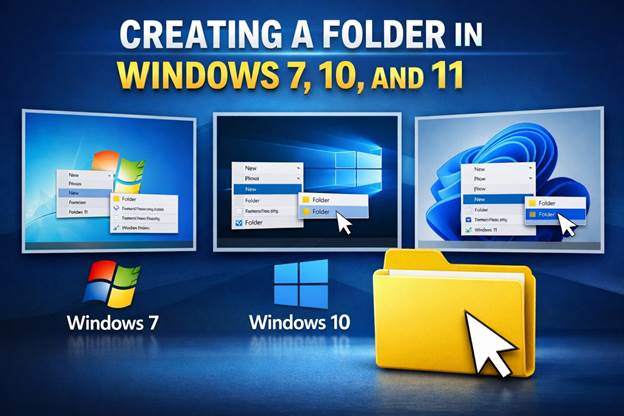
Creating a Folder in Windows – Complete Step-by-Step Guide for Windows 7, 10, and 11
Learning how to create a folder in Windows is one of the most essential computer skills. It helps you organize files, documents, photos, and programs in a structured way. Without folders, managing your files would quickly become difficult and confusing.
All modern Microsoft Windows operating systems — including Windows 7, Windows 10, and Windows 11 — provide several simple ways to create folders. These methods include using the right-click menu, keyboard shortcuts, File Explorer tools, and even Command Prompt commands.
Creating folders helps users:
- Organize files efficiently
- Improve productivity
- Keep desktops clean
- Manage backups more easily
- Structure work and personal documents
In this guide, we will explain multiple methods for creating folders in Windows, including instructions that work across different Windows versions.
By the end of this tutorial, you will understand:
- How to create folders on the Windows desktop
- How to create folders in File Explorer
- Keyboard shortcuts for folder creation
- Command line methods
- Differences between Windows 7, Windows 10, and Windows 11
Why Creating Folders in Windows Is Important
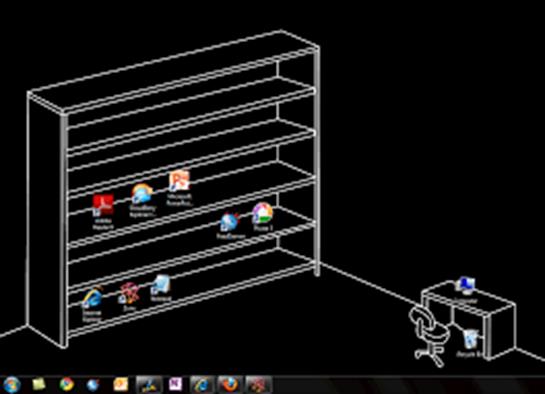
Using folders in Windows is the foundation of effective file management. When files are properly grouped into folders, it becomes much easier to locate and manage them.
Without folders, users would need to search through long lists of files every time they wanted to open something.
Benefits of Creating Folders
Better file organization
Folders allow users to group related files together, such as documents, images, or software installers.
Improved productivity
An organized system reduces the time spent searching for files.
Cleaner desktop environment
Too many files on the desktop can make a computer look cluttered. Storing files inside desktop folders keeps the workspace tidy.
Easier backup management
Folders simplify backing up important data to external drives or cloud storage.
Example Folder Organization
Documents
├── Work
├── Personal
└── Taxes
Media
├── Photos
├── Videos
└── Music
Software
├── Installers
└── Updates
Proper Windows folder organization can dramatically improve how efficiently you use your computer.
Method 1: Create a Folder Using Right-Click Menu
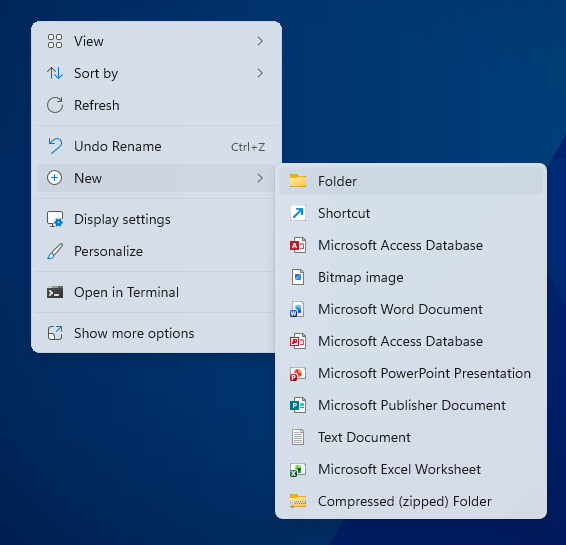
The easiest and most common method for creating a folder in Windows is using the right-click context menu.
Step-by-Step Instructions
- Navigate to the location where you want to create the folder.
- Right-click on an empty area.
- Select New.
- Click Folder.
- Enter the folder name.
- Press Enter.
The folder will immediately appear in that location.
Where You Can Create Folders
You can create folders in nearly any location including:
- Desktop
- Documents
- Downloads
- External drives
- Network drives
Renaming a Folder
If you want to rename a folder:
- Right-click the folder.
- Select Rename.
- Type the new name and press Enter.
This method is recommended for beginners learning Windows file management.
Method 2: Create a Folder Using Keyboard Shortcut
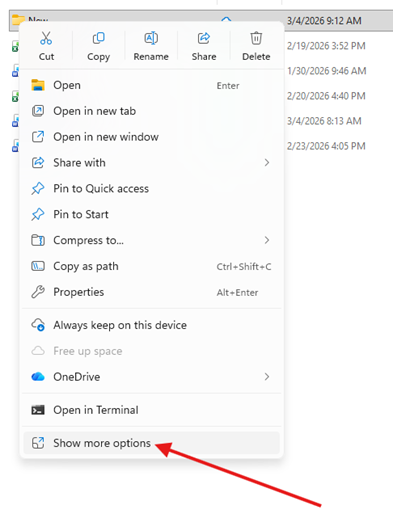
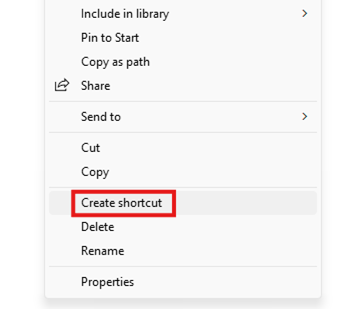
It will be as next picture.
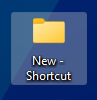
If you want to create folders faster, Windows offers a built-in keyboard shortcut.
Windows Folder Shortcut
Press:
Ctrl + Shift + N
This instantly creates a new folder in the current directory.
After the folder appears, simply type the desired name and press Enter.
Where This Shortcut Works
The shortcut works in:
- Desktop
- File Explorer directories
- External drives
- Network folders
Advantages of Keyboard Shortcuts
Faster workflow
No need to navigate menus.
Efficient for power users
Especially useful when creating many folders.
Improved productivity
Commonly used by IT professionals and developers.
Learning Windows keyboard shortcuts can greatly improve everyday efficiency.
Method 3: Create a Folder Using File Explorer
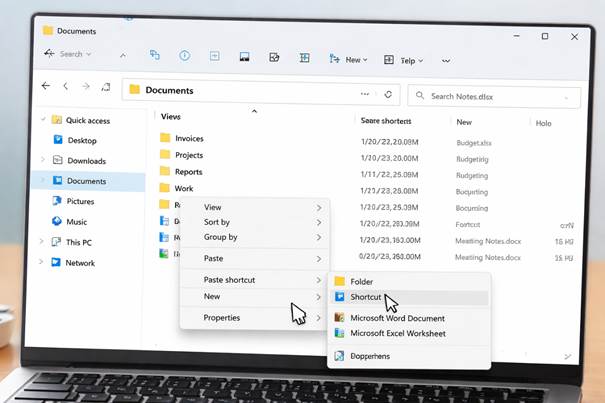
Another convenient way to create folders in Windows is through File Explorer.
Steps
- Open File Explorer.
- Navigate to the desired location.
- Click the New Folder button in the toolbar.
- Enter a folder name.
- Press Enter.
Windows 10 vs Windows 11 Interface
Windows 10
- Uses a Ribbon interface
- New Folder button located in the Home tab
Windows 11
- Uses a simplified toolbar
- New Folder icon located directly in the command bar
This method is particularly helpful when working inside large directory structures.
Method 4: Create a Folder Using Command Prompt
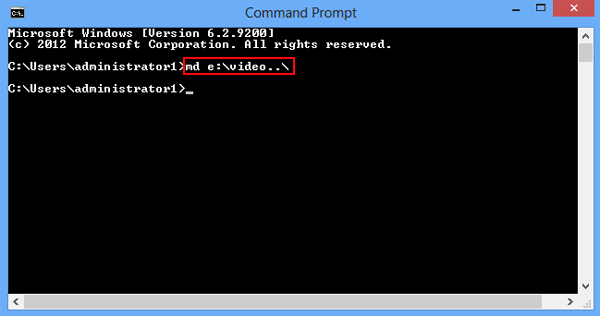
Advanced users often create folders using the Command Prompt.
This method uses the mkdir command (make directory).
Steps
- Open Command Prompt.
- Navigate to the directory.
Example:
cd Desktop
- Create the folder:
mkdir NewFolder
Press Enter, and the folder will appear instantly.
Creating Multiple Folders
Example:
mkdir Projects
mkdir Backup
mkdir Documents
This method is commonly used for automation, scripting, and system administration.
Creating a Folder in Different Windows Versions
Although the process of creating folders in Windows is similar across versions, the user interface differs slightly between Windows 7, Windows 10, and Windows 11.
Understanding these differences helps users quickly locate the New Folder option.
Creating a Folder in Windows 7
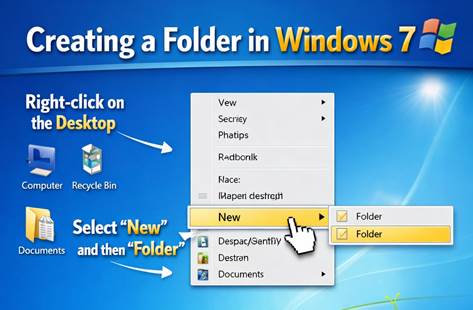
In Windows 7, creating folders is done through Windows Explorer.
Steps
- Open Windows Explorer.
- Navigate to the desired location.
- Right-click empty space.
- Select New → Folder.
- Enter the folder name.
You can also click the New Folder button located in the top toolbar.
Shortcut
Ctrl + Shift + N
Creating a Folder in Windows 10
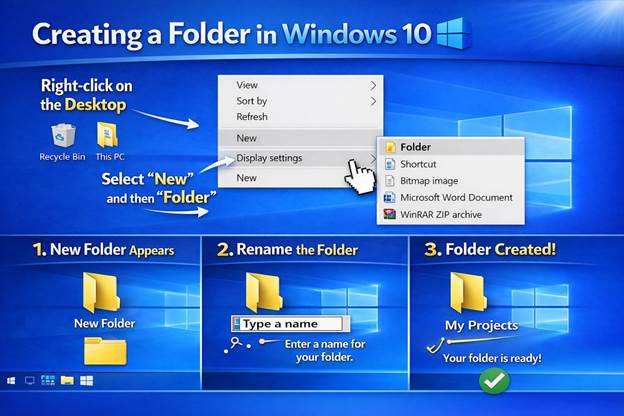
In Windows 10, folder creation happens through File Explorer with the Ribbon menu.
Steps
- Open File Explorer
- Click the Home tab
- Select New Folder
- Enter the folder name
- Press Enter
Windows 10 also supports the Ctrl + Shift + N shortcut.
Image search suggestions
- Windows 10 explorer ribbon new folder
- Windows 10 right click create folder
- Windows 10 desktop new folder
- Windows 10 file explorer interface
Creating a Folder in Windows 11
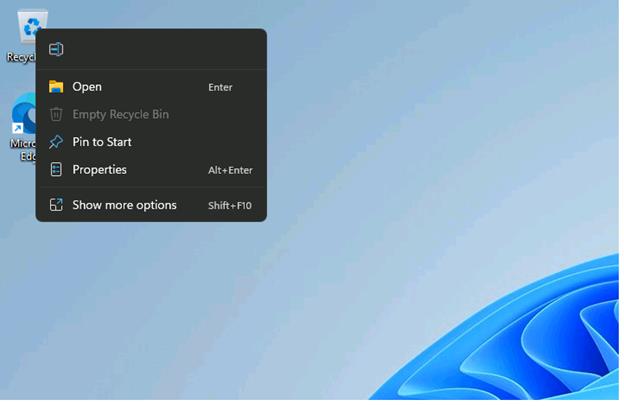
In Windows 11, Microsoft redesigned File Explorer with a modern interface.
Steps
- Open File Explorer
- Click New
- Select Folder
- Enter the folder name
- Press Enter
You can also right-click and select New → Folder.
Windows 11 provides a simplified toolbar and improved interface for managing files.
Best Practices for Organizing Windows Folders
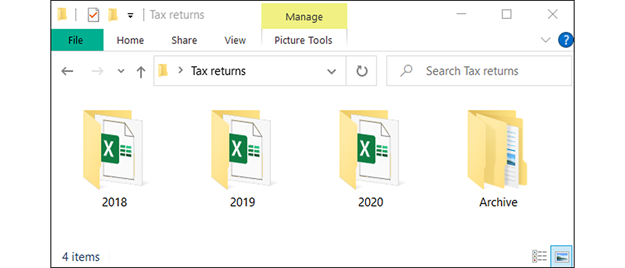
Creating folders is only the first step. Proper folder management improves productivity.
Use Clear Folder Names
Examples:
- Project Files
- Invoices 2026
- Software Installers
Use Subfolders
Example:
Work
└── Clients
└── Projects
Avoid Too Many Files in One Folder
Divide files by year, project, or category.
Example:
Photos
├── 2024
├── 2025
└── 2026