
How to Password Protect a PDF in Adobe Acrobat Pro DC (2025 Guide)
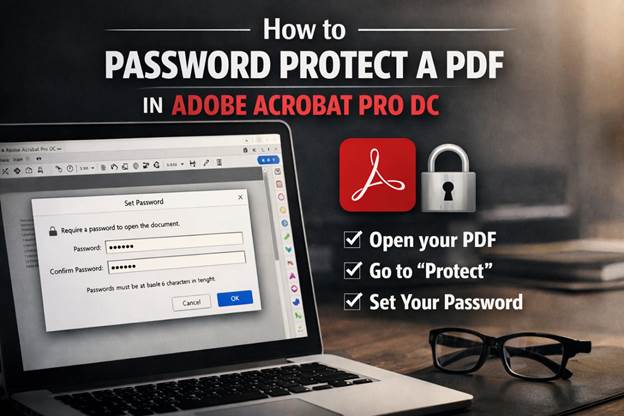
Protecting digital documents has become essential in today’s world where files are frequently shared through email, cloud storage, and collaboration platforms. Many PDF documents contain sensitive information such as contracts, invoices, reports, financial data, and confidential business records.
If a PDF file is not properly protected, unauthorized users may open it, copy its contents, or even modify important information. This can lead to data leaks or security risks.
One of the most effective ways to protect a document is by adding password security to a PDF file. Password protection ensures that only authorized users can access or interact with the document.
Adobe Acrobat Pro DC provides powerful tools that allow users to secure PDF documents quickly. With just a few settings, you can:
- Require a password to open the PDF
- Restrict editing or printing
- Prevent copying text and images
- Apply strong encryption to protect data
This guide explains how to configure PDF password security using Adobe Acrobat Pro DC (2025 version). The instructions are based on the Password Security Settings window, which allows you to control multiple security layers for your document.
Adobe Acrobat Pro DC Version Used in This Guide
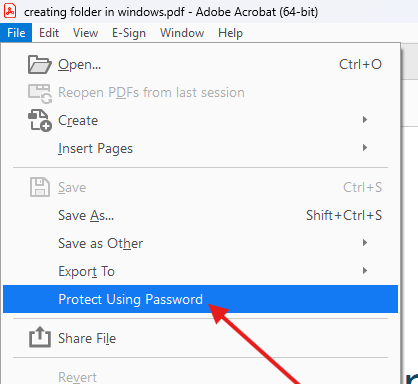
This tutorial is based on the following version of Adobe Acrobat:
- Adobe Acrobat Pro DC – Continuous Release
- Version: 2025.001.21265
- Architecture: 64-bit
Adobe Acrobat uses a Continuous Release (DC) update system. This means Adobe regularly provides security updates and feature improvements throughout the year.
Because of these updates, the interface of Adobe Acrobat may look slightly different compared to older versions such as:
- Acrobat XI
- Acrobat 2017
- Earlier Acrobat standalone releases
However, the core method for protecting PDFs with a password remains mostly the same across versions.
Users working on Windows systems can follow the steps in this guide without difficulty.
Understanding the Password Security Settings Window
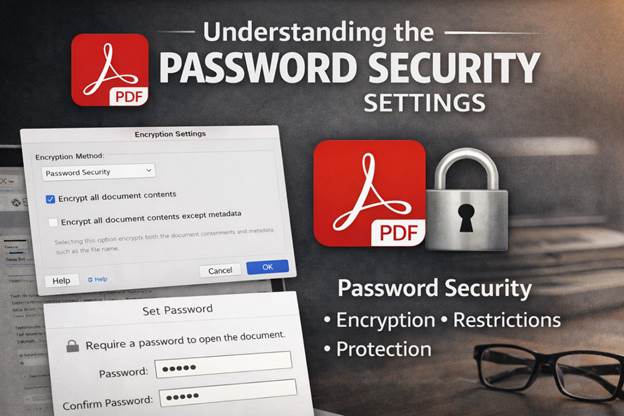
Adobe Acrobat Pro DC provides a dedicated Password Security Settings window where users can configure different protection levels for a PDF document.
This window allows you to control how the document can be accessed and what users are allowed to do with it.
The interface contains three main sections:
- Document Open Password
- Permissions Restrictions
- Encryption Options
Using these options, you can apply advanced security settings depending on the sensitivity of your document.
For example, you can configure a PDF so that:
- Users must enter a password before opening the document
- Editing the document is disabled
- Copying text or images is blocked
- Printing the file is restricted
Adobe Acrobat also uses AES-256 encryption, which is one of the strongest encryption methods available for PDF security.
Because of these features, Acrobat is widely used in industries such as:
- Corporate environments
- Government organizations
- Legal and financial sectors
- Education institutions
These sectors often require strict document protection policies.
Setting a Password to Open the PDF
The Document Open Password feature is one of the strongest protection options available in Adobe Acrobat.
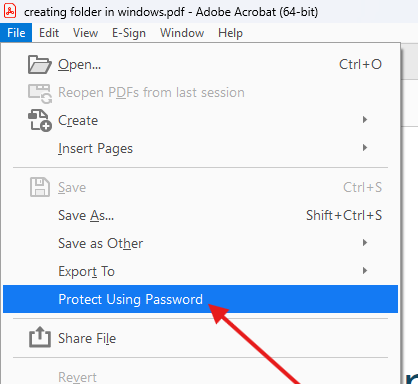
When this setting is enabled, users must enter a password before the PDF document can be viewed.
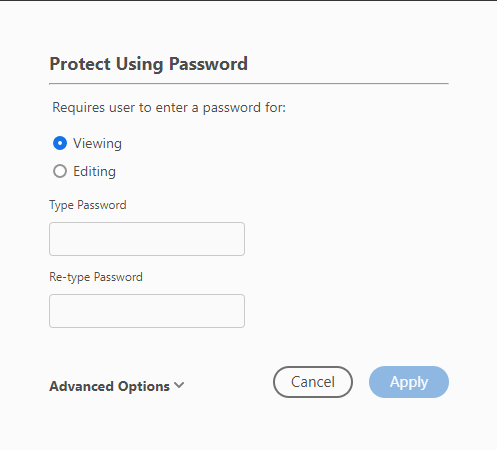
Without the correct password, the document will remain completely inaccessible.
This feature is particularly useful when sending confidential documents through:
- Email attachments
- Cloud storage services
- File sharing platforms
When you begin entering a password, Adobe Acrobat displays a password strength indicator. The system evaluates the password and categorizes it into three levels:
- Weak
- Strong
- Best
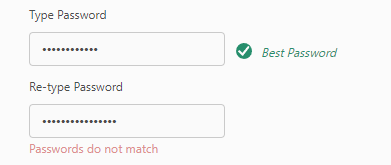
A stronger password makes it significantly more difficult for unauthorized users to access the document.
It is also important to type the password twice. If the two entries do not match, Adobe Acrobat will display the message:
“Passwords do not match."
This ensures that the password was entered correctly before applying it to the document.
Enable Password Protection (H3)
Follow these steps to enable password protection in Adobe Acrobat Pro DC:
- Open your PDF file in Adobe Acrobat Pro DC.
- Select Tools from the top menu.
- Choose Protect or Security options.
- Click Password Security.
- Enable Require a password to open the document.
- Enter your password in the Document Open Password field.
- Re-enter the password to confirm it.
- Click OK.
- Save the document.
After saving the file, anyone attempting to open the PDF must enter the password.
Password Strength Indicator
Adobe Acrobat includes a password strength indicator to help users create more secure passwords.
The program evaluates the complexity of the password and shows whether it is weak or strong.
A strong password typically contains a combination of:
- Uppercase letters
- Lowercase letters
- Numbers
- Special characters
The more complex the password is, the harder it becomes for attackers to guess or crack it.
Example of a strong password:
TechSoftViews@2026SecurePDF!
Using strong passwords significantly improves the overall security of your PDF documents.
Best Security Practices for Protecting PDFs
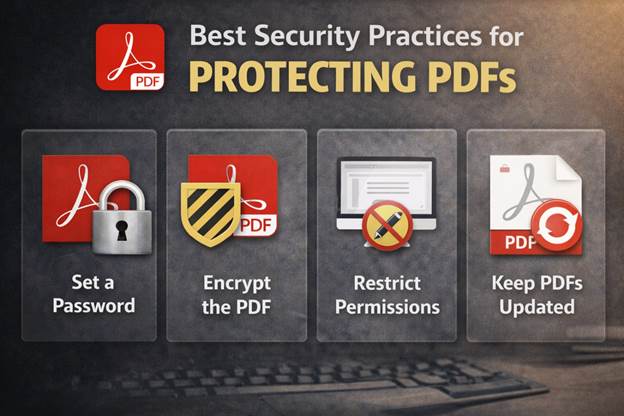
Adding a password is only one part of securing your documents. To maximize protection, it is important to follow several additional security practices.
Use AES-256 Encryption
Whenever possible, choose 256-bit AES encryption.
This encryption standard is widely used in professional security systems and offers very strong protection against unauthorized access.
Create Strong Passwords
Avoid using simple passwords such as:
- 123456
- password
- admin
These passwords can be cracked very quickly.
Instead, create long passwords that include a mix of letters, numbers, and symbols.
Limit Document Permissions
If the document should not be modified, disable editing permissions.
This prevents users from:
- Changing the content
- Copying text
- Extracting images
Limiting permissions ensures the integrity of the document.
Store Passwords Safely
Losing the password for a protected PDF may permanently lock you out of the document.
To avoid this issue, use a password manager to store important passwords securely.
Conclusion
PDF files are widely used for sharing important documents, but without proper protection they can be easily accessed or modified by unauthorized users.
Adobe Acrobat Pro DC provides powerful tools that make it easy to secure your documents using password protection and encryption.
By enabling a Document Open Password, applying AES-256 encryption, and restricting document permissions, you can significantly improve the security of your PDF files.
Following the steps described in this guide will help ensure that your documents remain accessible only to the intended recipients.
Proper PDF security is an essential step for protecting confidential information in both personal and professional environments.